

Connect AI apps with DoubleTick MCP
Connect your AI apps to DoubleTick through MCP and work in your account using plain language.
Connect Claude, ChatGPT, Cursor or any other MCP-compatible AI app to DoubleTick. Once connected, you can ask the app to work in your account in plain language.
Before you start
- You need a PRO or Enterprise plan.
- You need the Create MCP Keys permission. Owners have it by default for other roles, an owner or admin can turn it on in Settings → Roles, under API Management.
- The AI app acts on your behalf, so it can only see and do what your DoubleTick role allows.
Step 1: Copy the server URL
https://mcp.doubletick.io/v2/mcp
Step 2: Add DoubleTick to your AI app
Claude (web or desktop)
Go to Settings → Connectors → Add custom connector, paste the URL and click Connect.
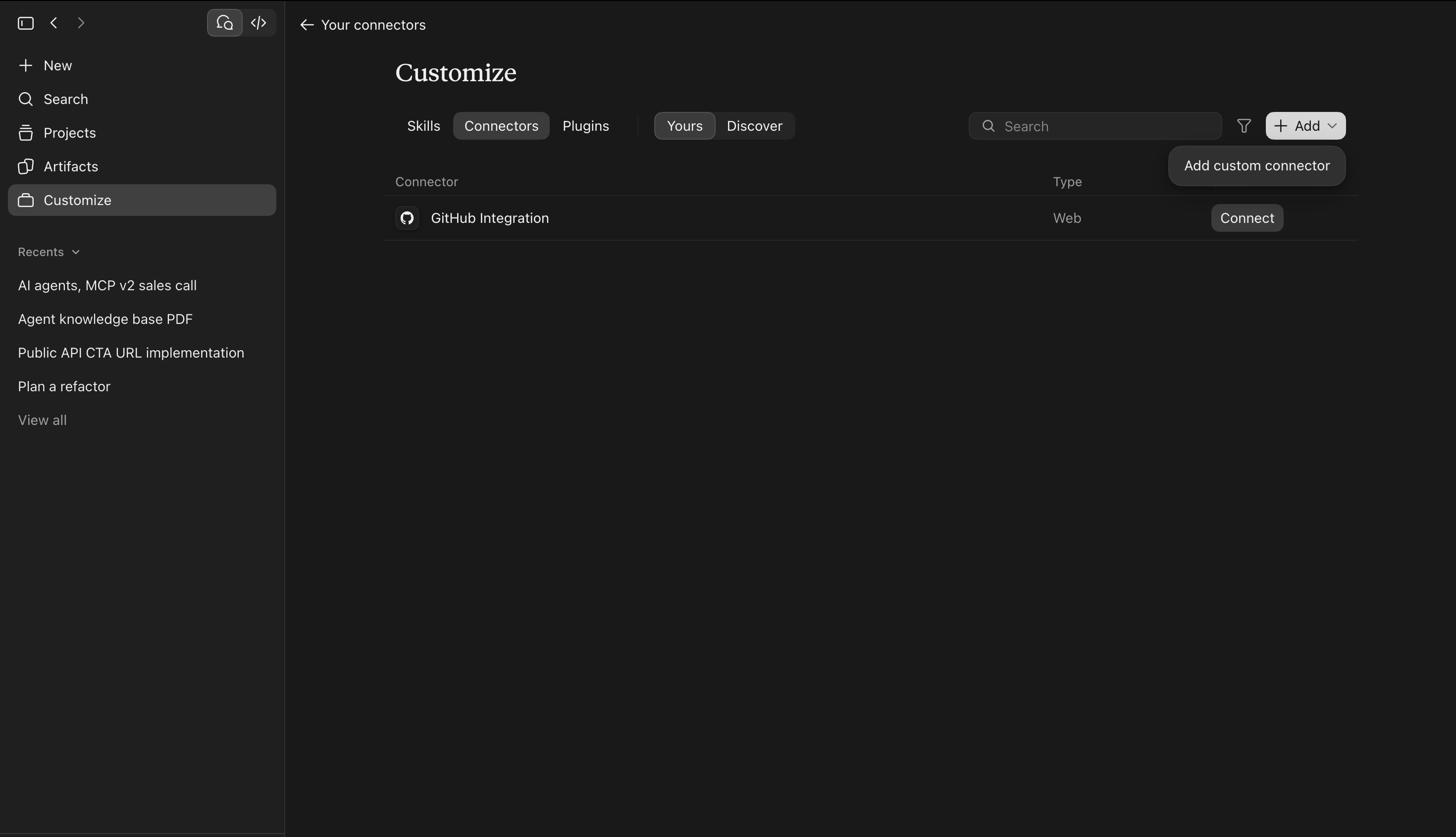
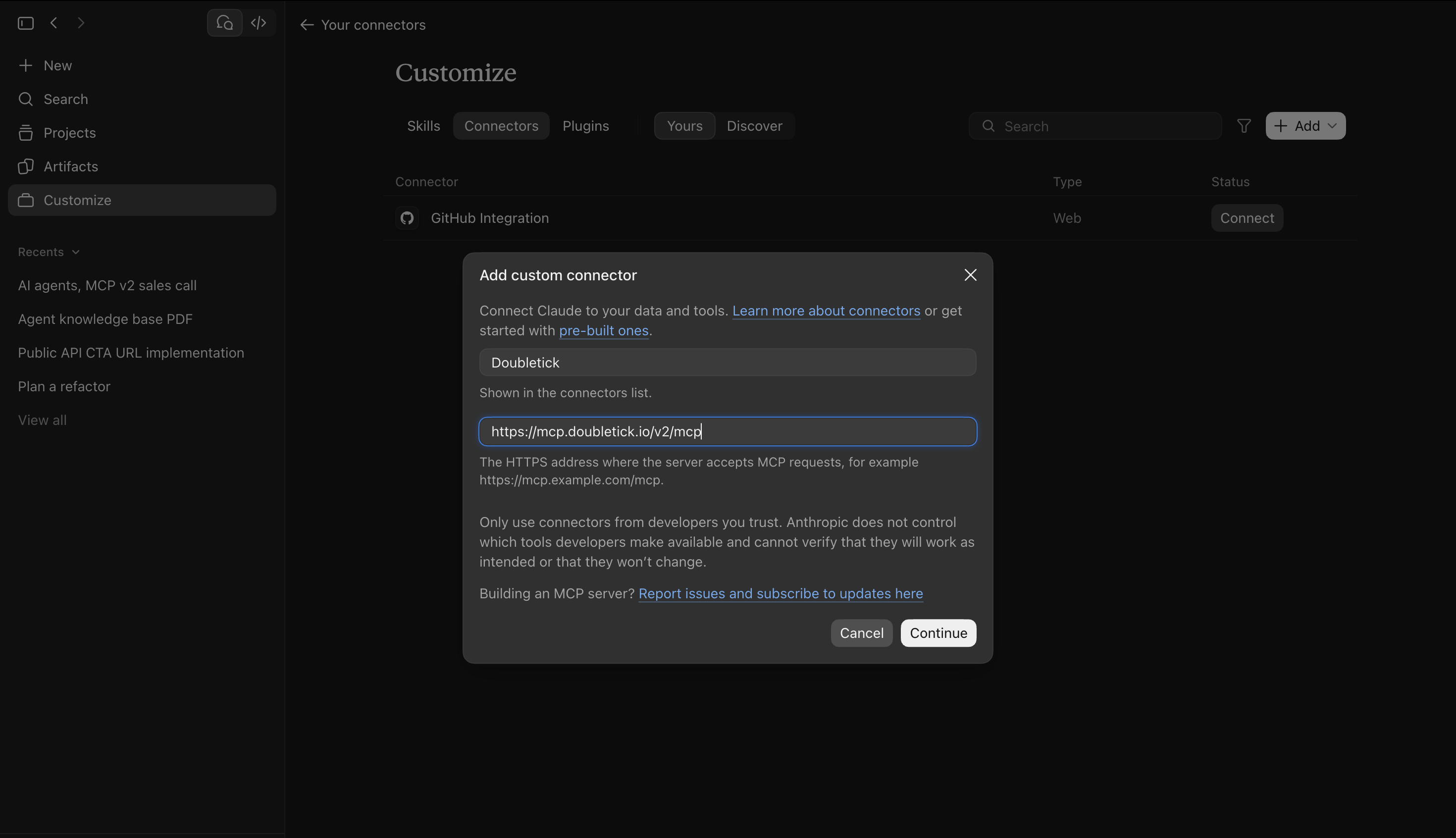
Claude Code
Run this in your terminal, then type /mcp in Claude Code and choose doubletick:
claude mcp add --transport http doubletick https://mcp.doubletick.io/v2/mcp

ChatGPT, Cursor, Grok, Antigravity
Add a custom MCP server and paste the same URL.
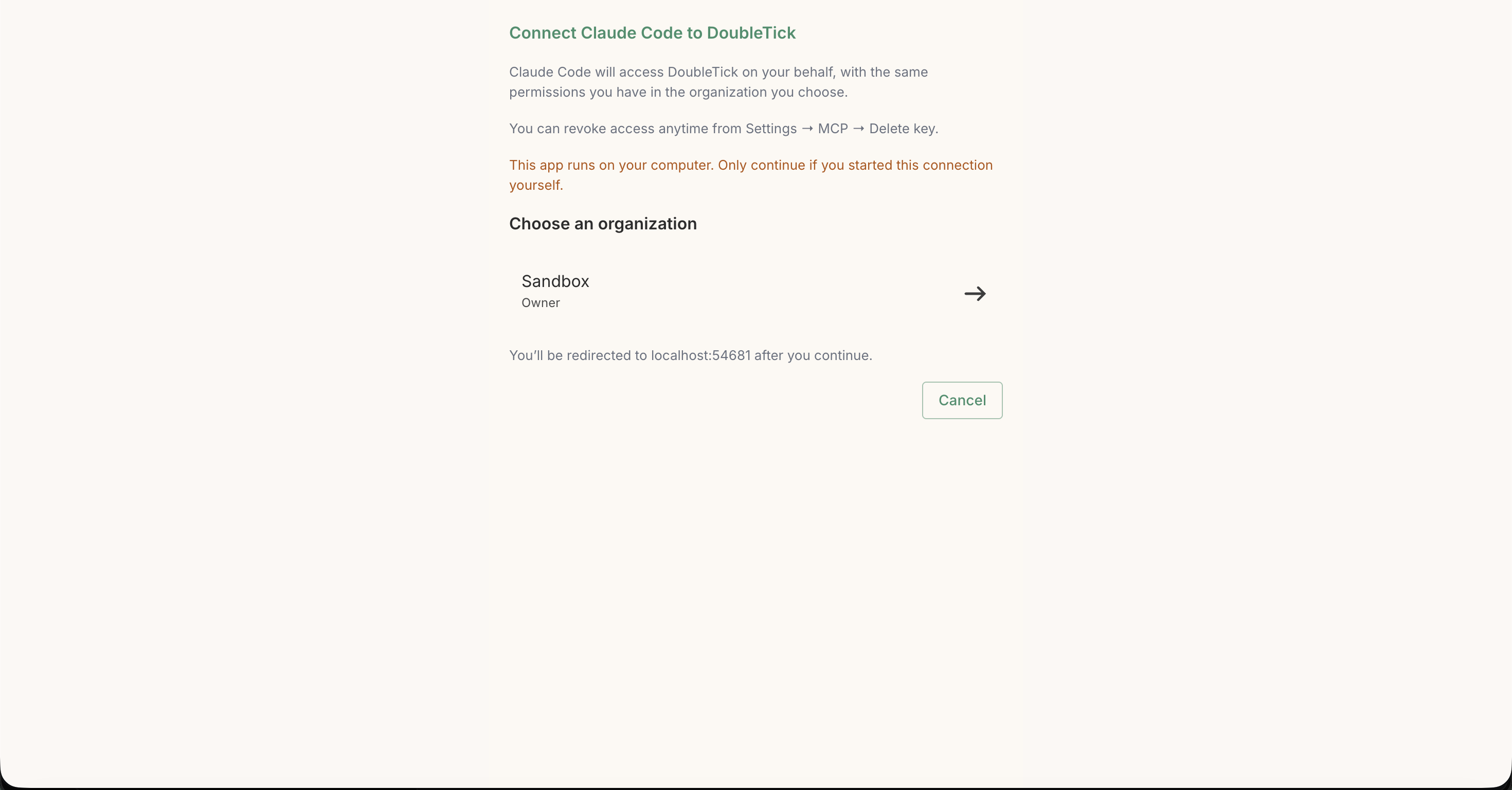
Step 3: Sign in with DoubleTick
Your app opens the DoubleTick sign-in page. Log in and choose the organization you want to connect. That's it, no key to copy.
Step 4: Start asking
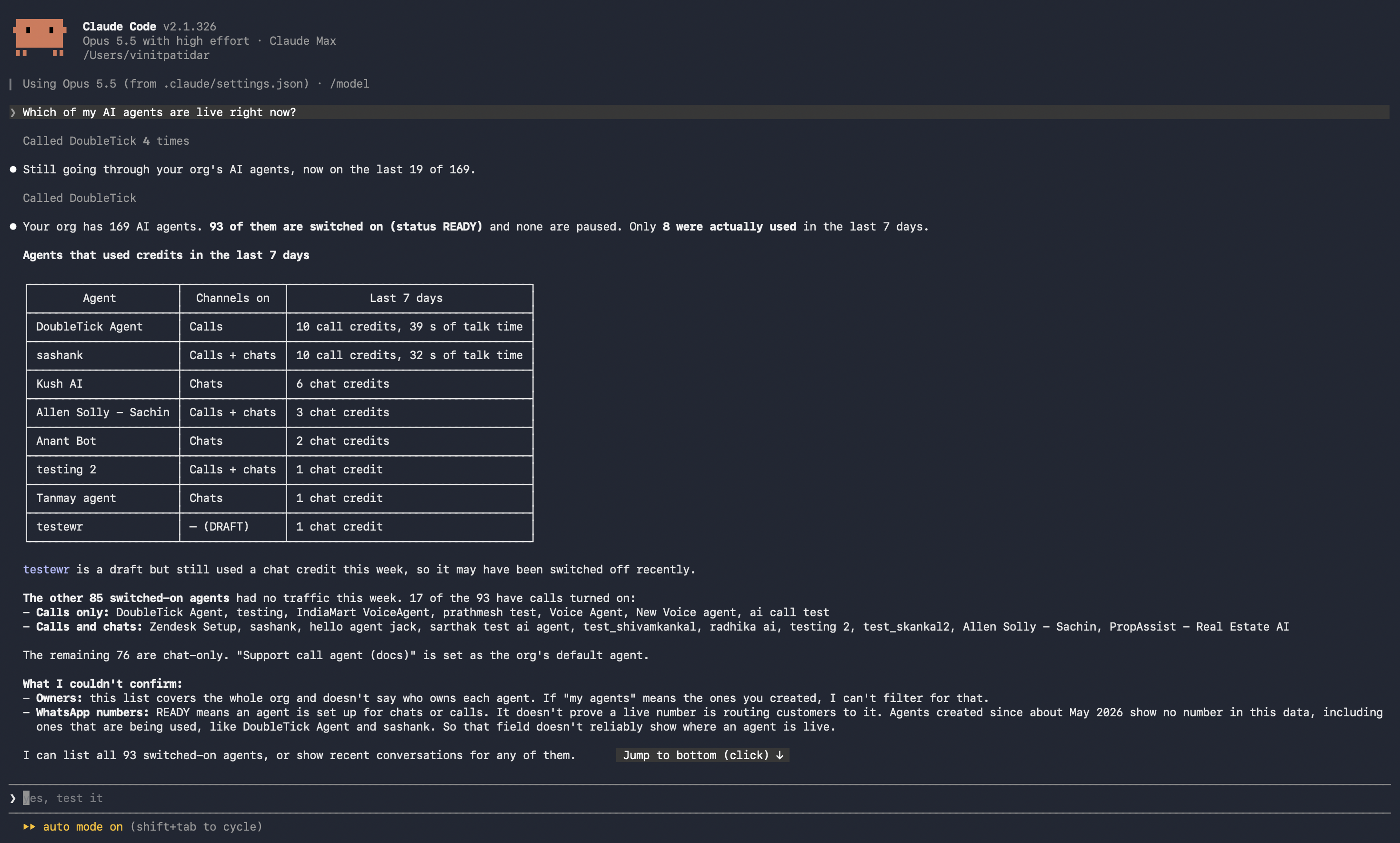
Try things like:
- "Which of my AI agents are live right now?"
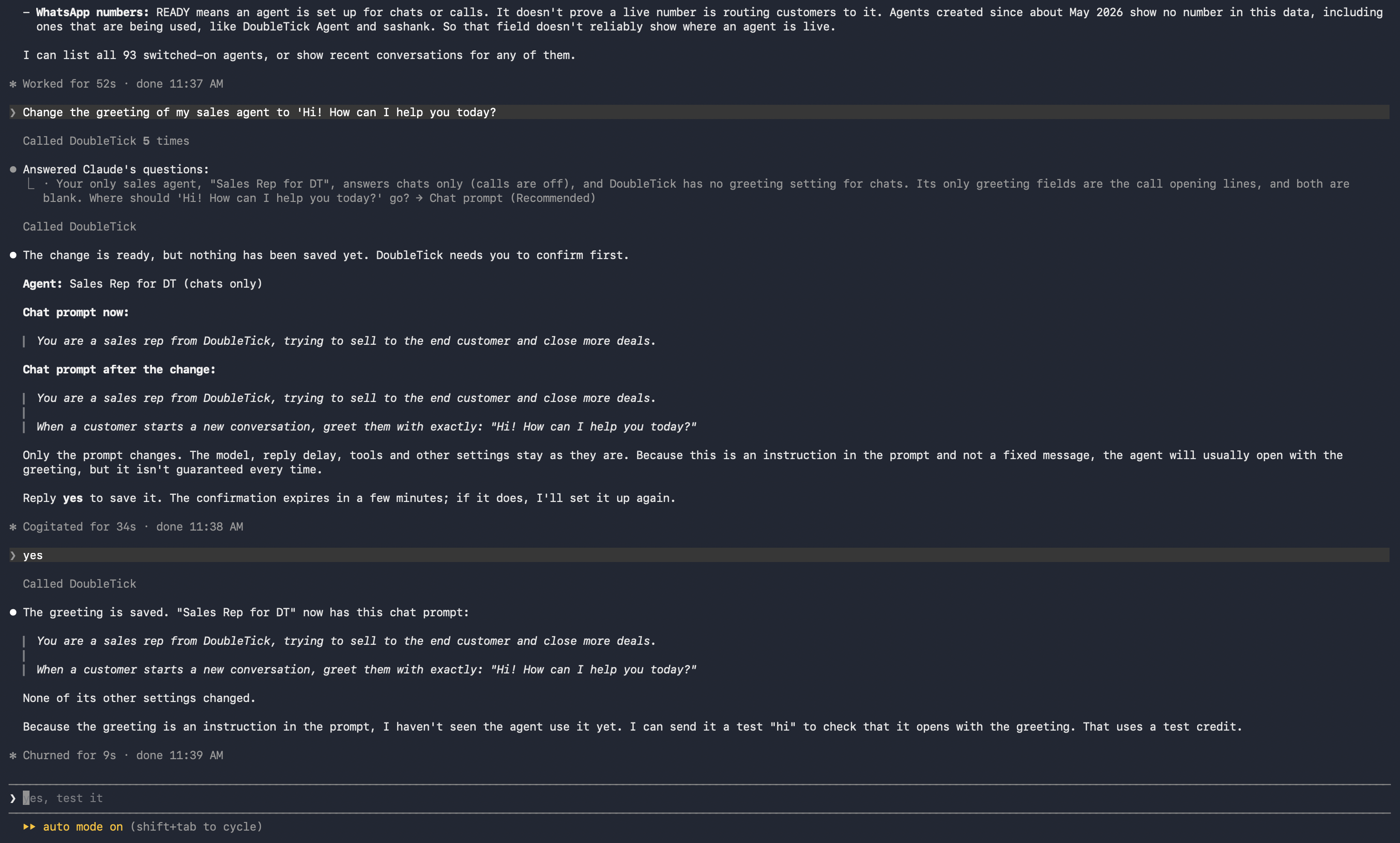
- "Change the greeting of my sales agent to 'Hi! How can I help you today?"
- "Add an FAQ to my support agent about our return policy"
You stay in control
- Every change needs your OK. Before sending a message or saving a bot, the app shows what will change and waits for your "yes".
- Nothing is deleted. Deleting is only possible in the DoubleTick web app.
- Customer privacy is kept. Phone numbers and emails are masked in answers.
Manage connected apps
Open Settings → MCP in DoubleTick to see every connected app, when it was last used, and when it expires. Delete a key to disconnect that app. Apps connected by sign-in need to sign in again after 30 days.
Connecting with a key
- In DoubleTick, go to Settings → MCP → Create key.
- Name the key, choose when it expires, and copy it. It's shown only once.
- In your app's MCP settings, send the key in the
x-dt-mcp-keyheader.
Keep your key private: anyone who has it can act as you. If it's ever exposed, delete it in Settings → MCP.
Troubleshooting
| Problem | What to do |
|---|---|
| The app asks you to sign in again | Your key expired or was deleted. Sign in again. |
| "Permission denied" | Your role doesn't allow that action. Ask your admin. |
| MCP is locked in Settings | Upgrade to the PRO or Enterprise plan. |
Updated about 8 hours ago