

Bitrix24 Integration with DoubleTick
Connect Bitrix24 with DoubleTick to streamline WhatsApp communication, manage conversations within CRM, and improve response efficiency for your leads and customers.
You can integrate Bitrix24 CRM with DoubleTick to manage WhatsApp conversations directly inside Bitrix24.
This integration allows you to:
- Open WhatsApp chats from Bitrix24 leads
- Use DoubleTick inside Bitrix24 CRM
- Manage customer communication without switching platforms
Before you begin
Make sure the following requirements are met:
- You are using a paid Bitrix24 plan
- You have access to install applications in Bitrix24
- You have received the DoubleTick App ZIP file
IMPORTANT
Bitrix24 does not support installing local applications on the free plan.
You must upgrade to a paid plan to proceed.
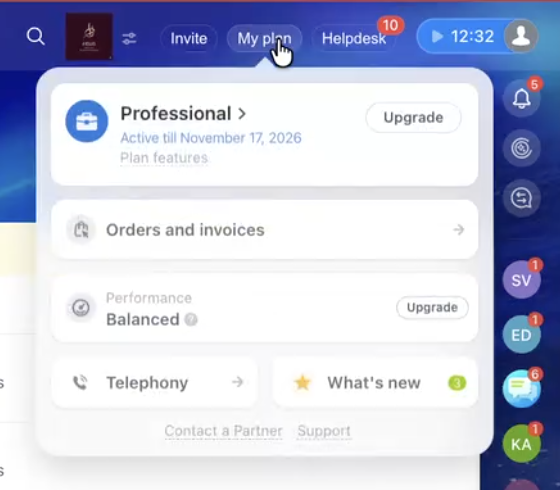
Step 1 — Verify your Bitrix24 plan
- Log in to your Bitrix24 Dashboard.
- Click on My Plan (top header section).
- Confirm that your account is on a paid plan.
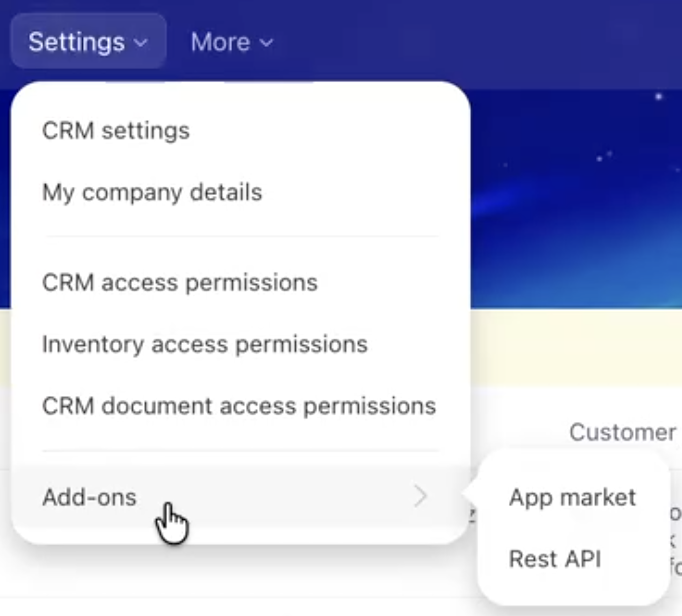
Step 2 — Navigate to REST API settings
- From the left sidebar, go to CRM.
- Click on the Settings button.
- From the menu, select Add-ons -> REST API
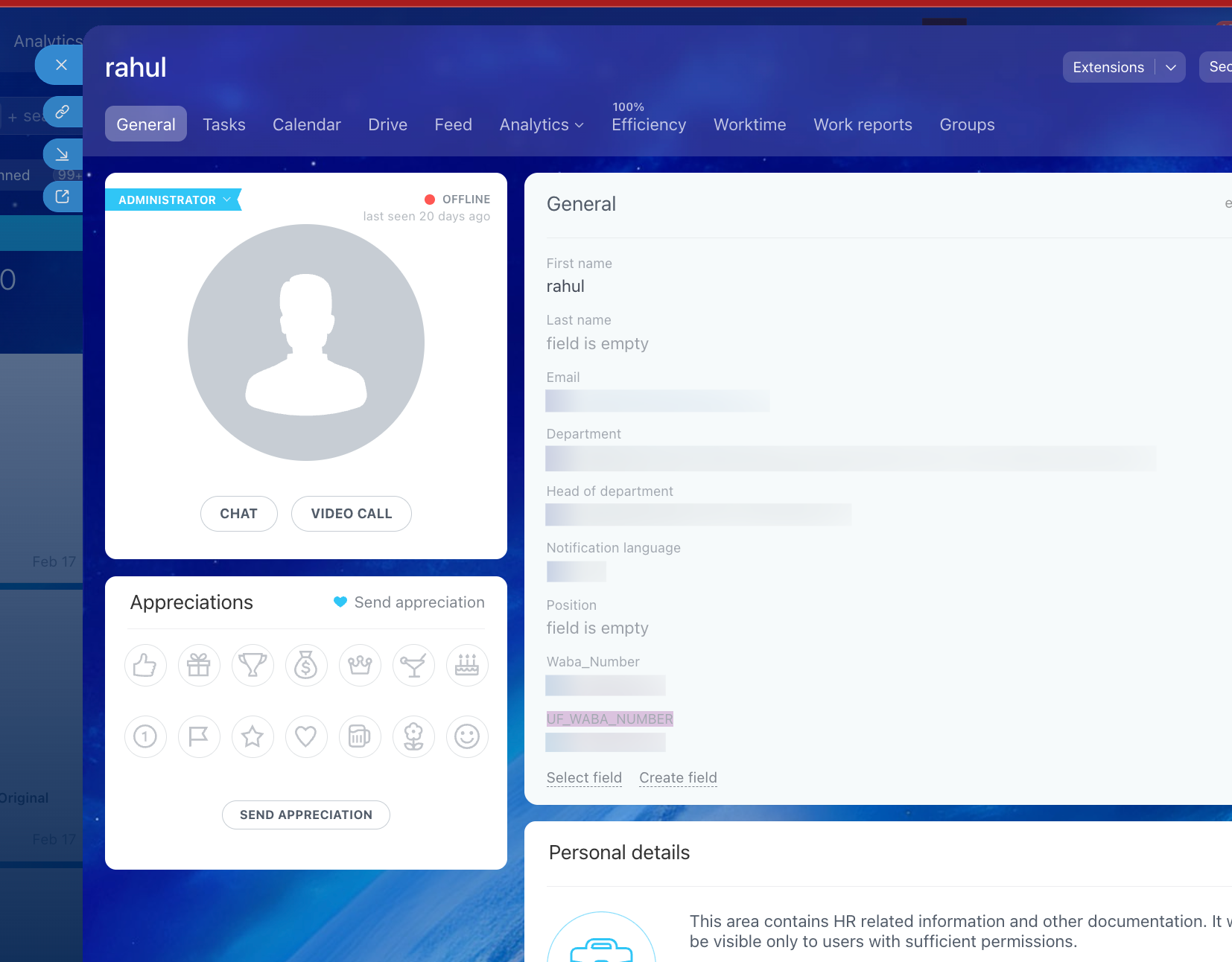
Step 3 — Connect WhatsApp (WABA) in Bitrix24
- Open your Bitrix24 Admin profile.
- Click on the photo in the top right corner to open a profile and click the name.
- Click Create field and select the field type.
| Field | Type | Value |
|---|---|---|
UF_WABA_NUMBER | string | WABA number by which chat opens |
IMPORTANT
Make sure the WhatsApp number connected here is the same WABA number configured in DoubleTick.
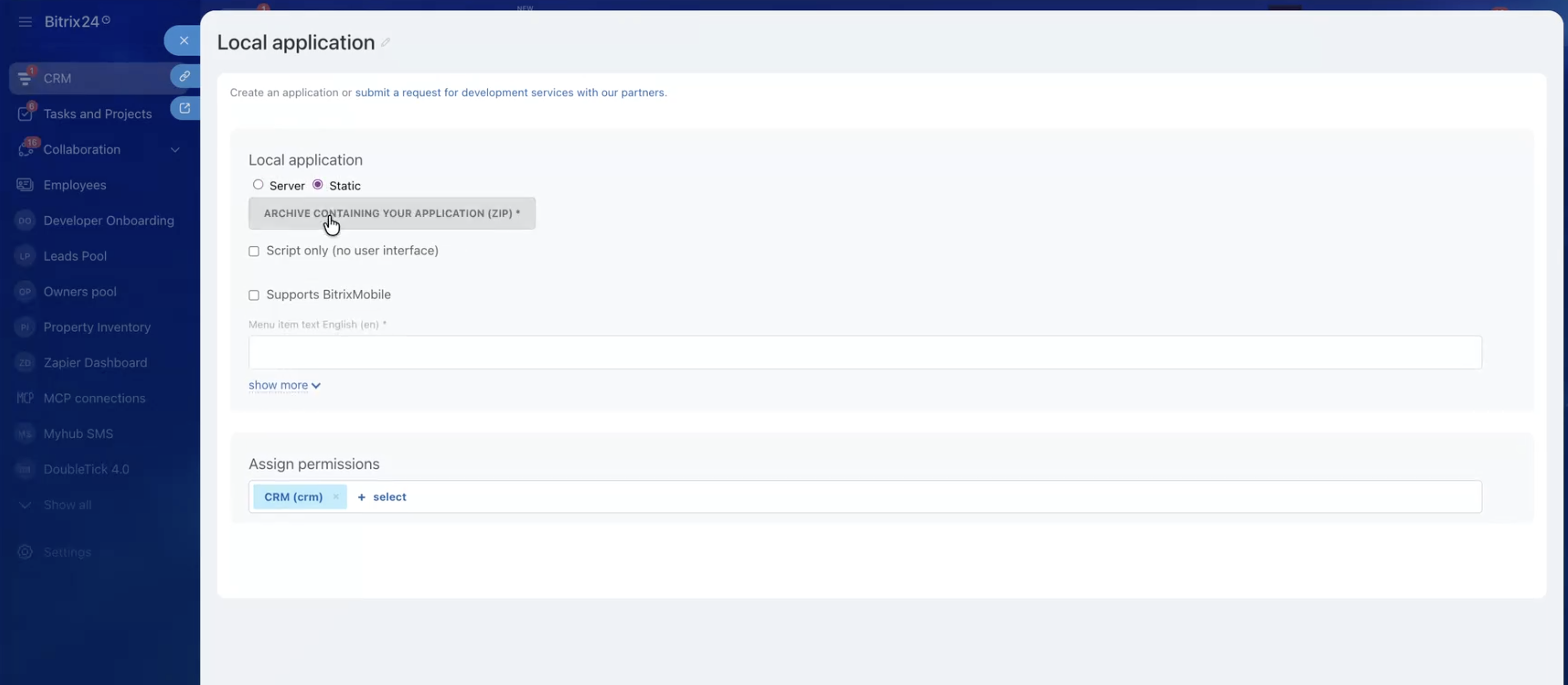
Step 4 — Create a local application
- In the REST API page, go to Developer Resources.
- Select:
Other (Create inbound and outbound webhooks or a local app)
- You will see multiple options. Select:
Local Application
Step 5 — Configure application settings
- Select the Static option.
- Upload the DoubleTick ZIP file (provided by the DoubleTick team).
Fill in application details
| Field | Value |
|---|---|
| Menu item text | DoubleTick |
| Assign permissions | CRM (crm), Users (user), Application embedding (placement) |
IMPORTANT
All required permissions must be selected to ensure the DoubleTick app works correctly inside Bitrix24.
Step 6 — Install the application
- Click Save.
- Bitrix24 may prompt you to Install the application.
- Click Install to complete the installation.
Step 7 — Access DoubleTick inside CRM
- Go to CRM.
- Open any Lead.
- You will see a new menu item named DoubleTick.
- Click on it to open the DoubleTick interface.
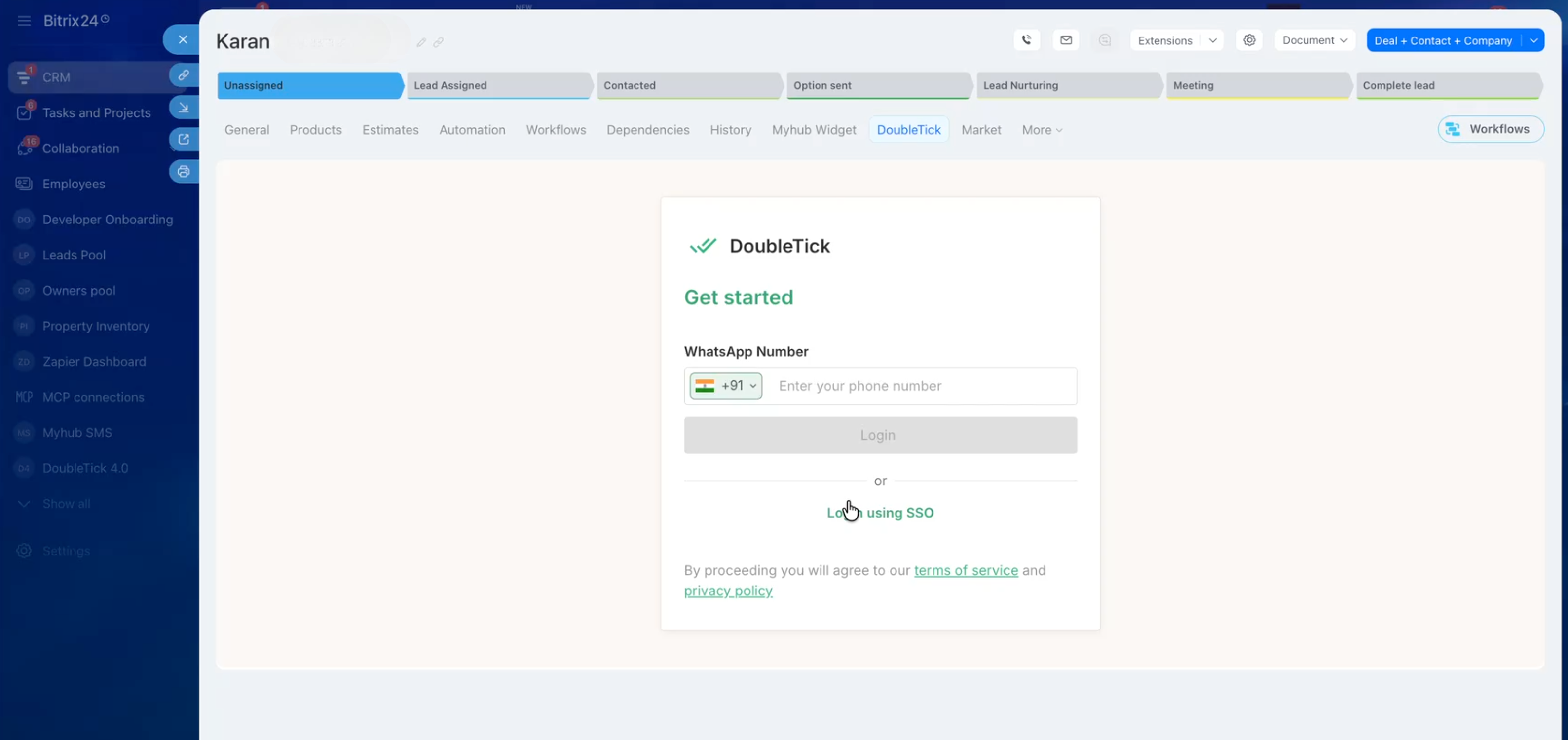
- Log in using your DoubleTick credentials.
- Start sending and receiving WhatsApp messages directly from Bitrix24.
TIP
You can use this integration to manage conversations without leaving Bitrix24, improving response time and workflow efficiency.
Integration flow
Once installed:
- Bitrix24 loads the DoubleTick application inside CRM.
- Users open a lead and access DoubleTick.
- Messages are sent and received via DoubleTick WhatsApp.
- Conversations can be managed directly within Bitrix24.
Updated 6 months ago