MoEngage WhatsApp Integration
Send your approved WhatsApp templates to any MoEngage segment through your DoubleTick number, using a MoEngage Connector campaign.
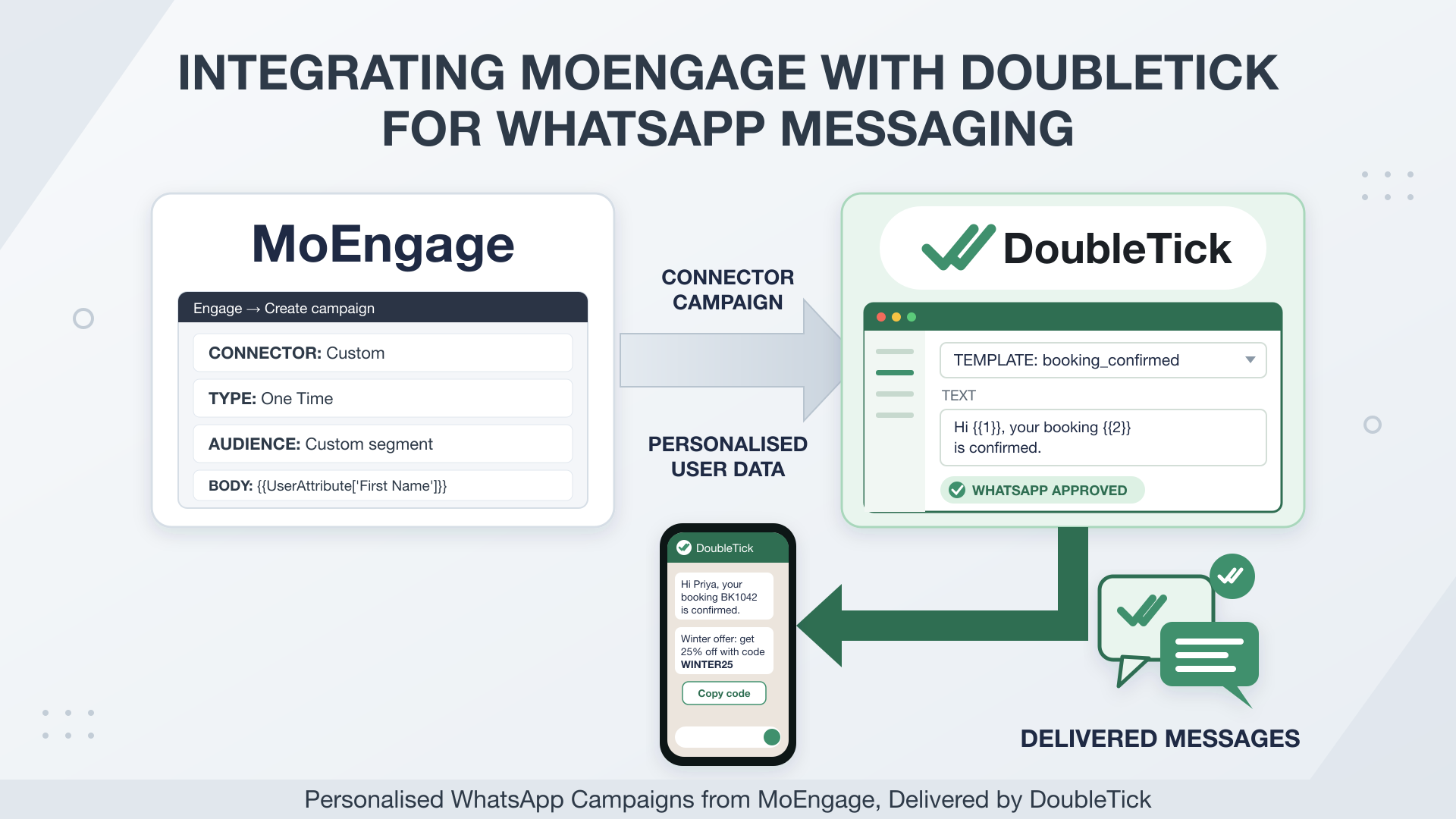
Use a MoEngage Connector campaign to send your approved WhatsApp templates to any MoEngage segment, through your DoubleTick number.
This integration allows MoEngage to:
- Send approved WhatsApp templates to any MoEngage segment
- Personalise each message with the user's details from MoEngage
- Send templates with images, videos, documents, buttons and carousels
Prerequisites
Before starting the integration, make sure you have:
- An active DoubleTick account
- Your DoubleTick API Key
- The exact name and language of an approved template
- Access to MoEngage Dashboard
NOTE
If you do not have your DoubleTick API Key, you can obtain it by following this guide:
https://docs.doubletick.io/docs/quickstart-guide#step-2-generate-your-api-key
Step 1 — Create a Custom Connector campaign
- Login to your MoEngage Dashboard.
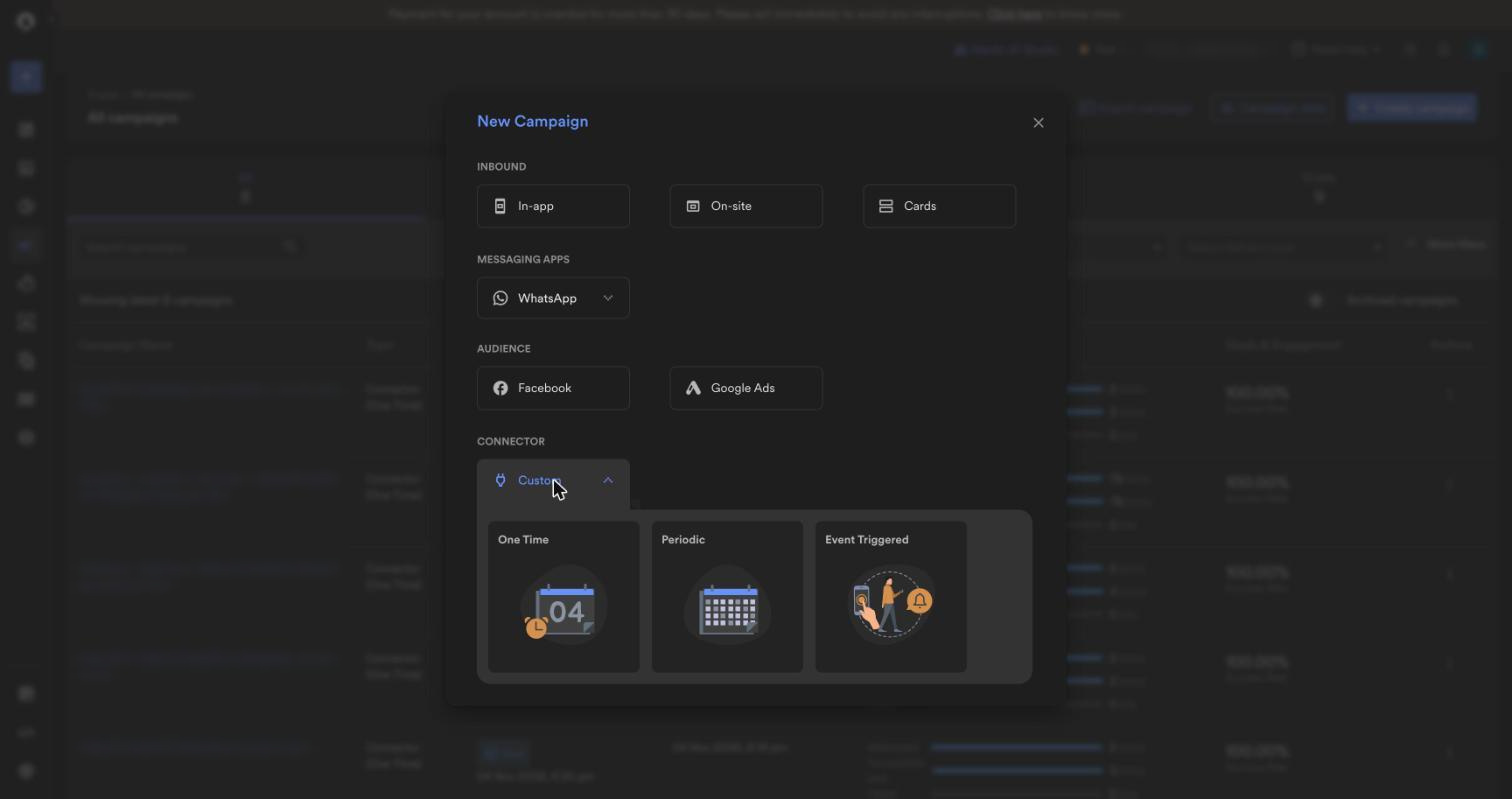
- Navigate to: Engage → Create campaign
- Open Connector → Custom.
- Choose One Time (or Periodic / Event Triggered).
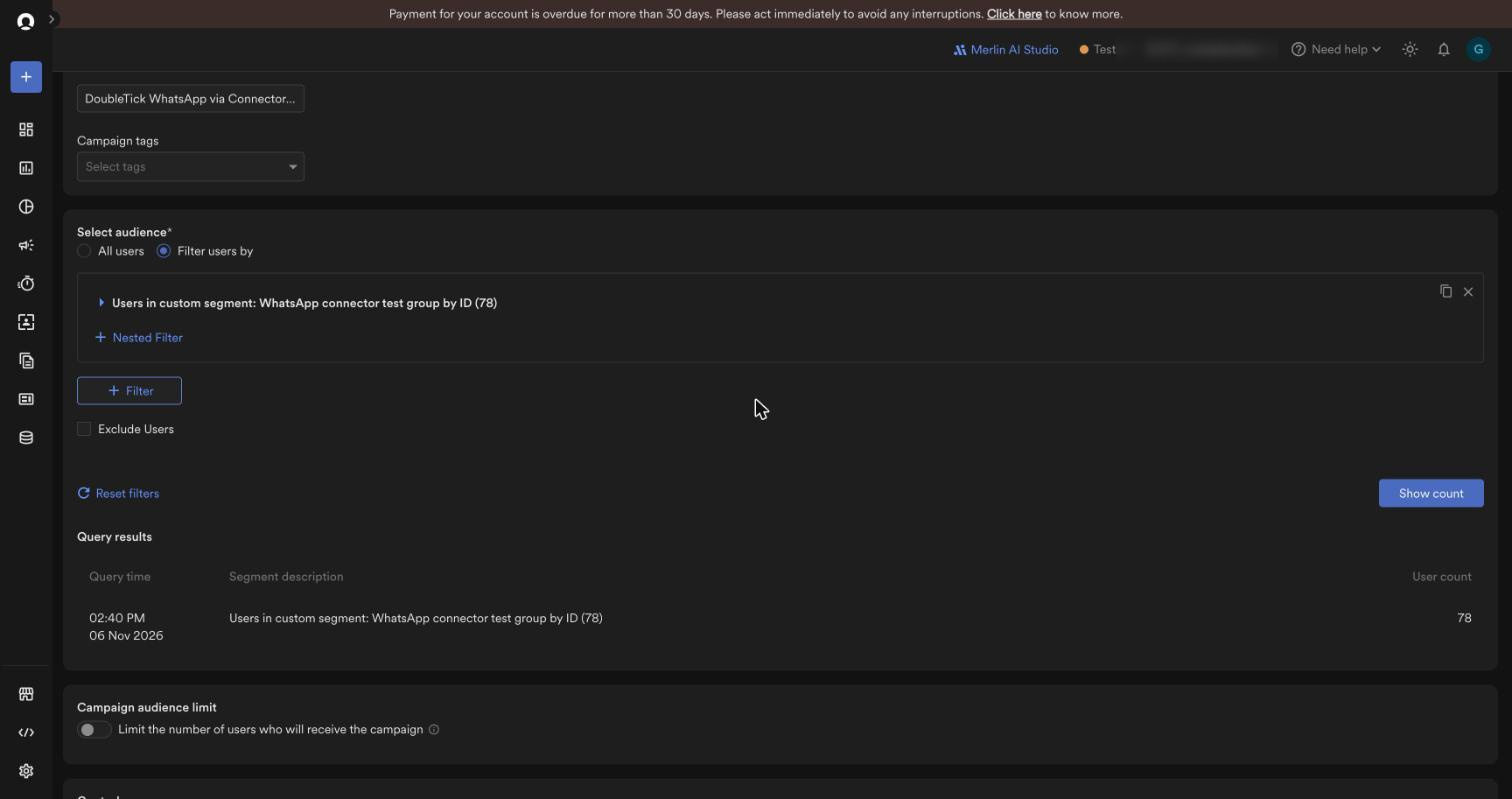
Step 2 — Choose who gets it
- Name the campaign.
- Choose Filter users by → Custom segment.
- Pick your segment and click Show count.
Step 3 — Point it at DoubleTick
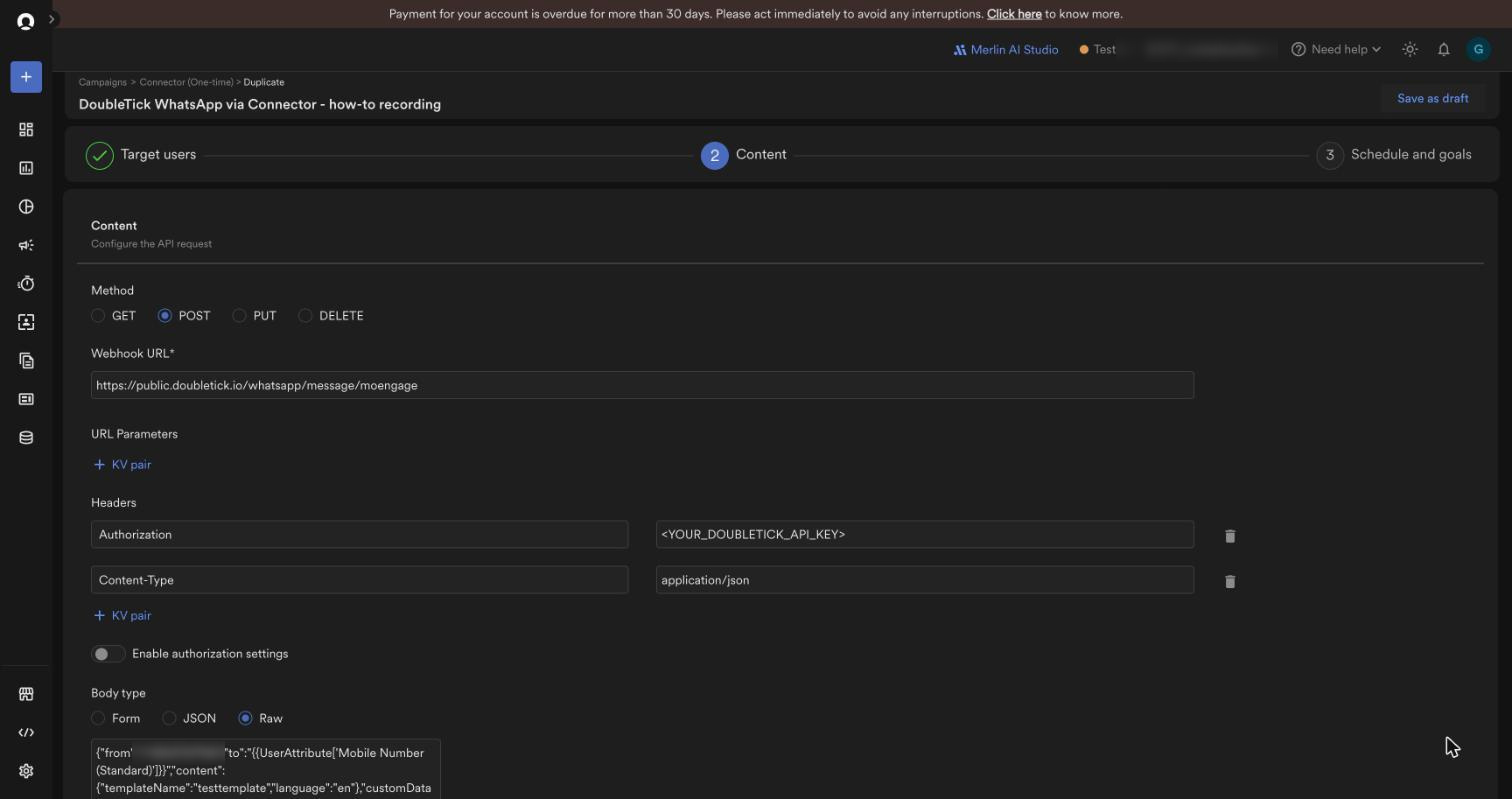
On the Content step fill in exactly:
| Field | Value |
|---|---|
| Method | POST |
| Webhook URL | https://public.doubletick.io/whatsapp/message/moengage |
Add Headers
| Key | Value |
|---|---|
| Authorization | doubletick-api-key |
| Content-Type | application/json |
IMPORTANT
The Authorization header must contain your DoubleTick API Key: just the key, no "Bearer".
Step 4 — Paste the message body
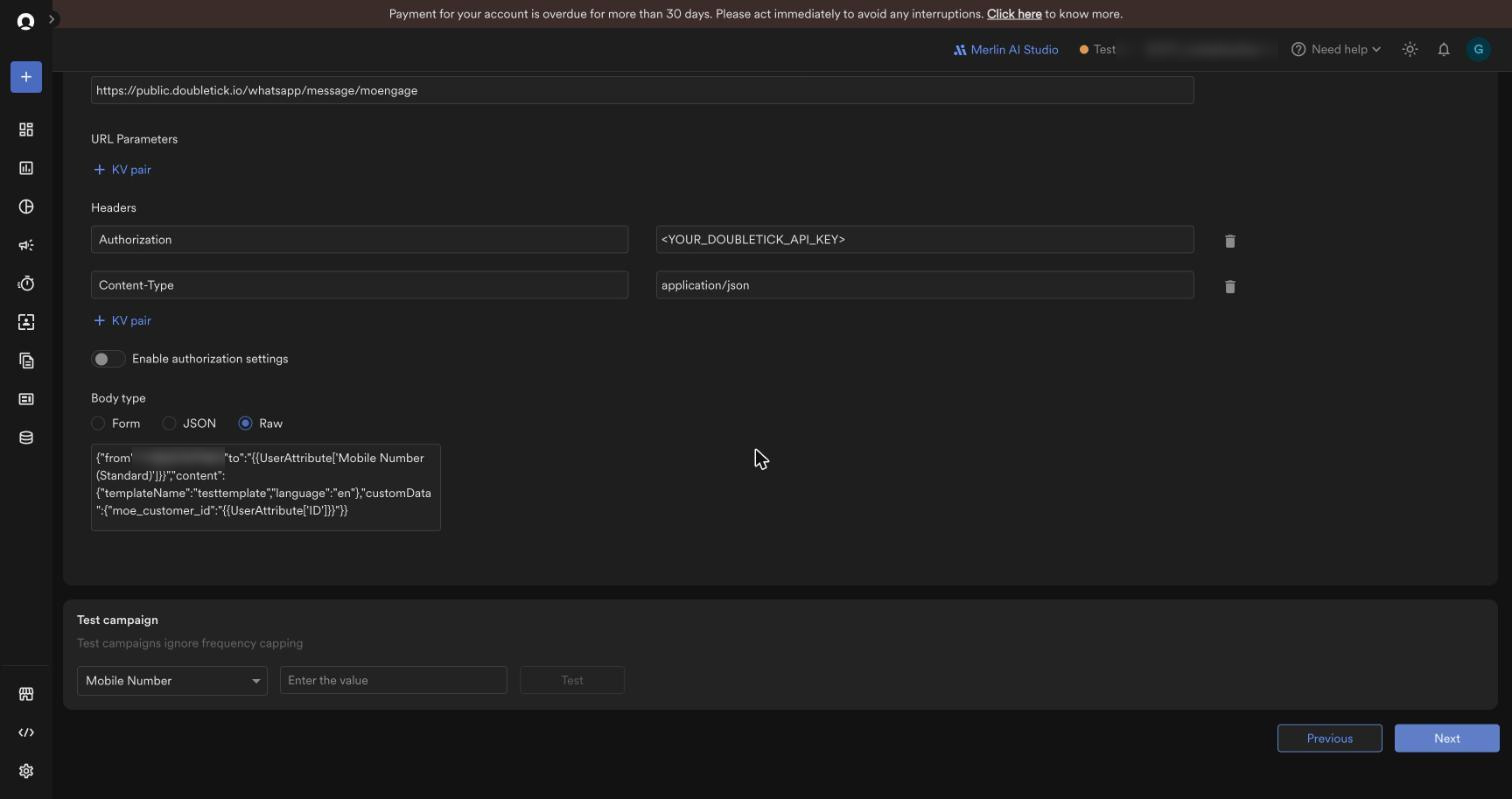
- Set Body type to Raw (not JSON).
- Paste the body for your template from the Message body examples below.
IMPORTANT
Use Raw body type. MoEngage's JSON option can't hold these bodies.
Step 5 — Schedule and publish
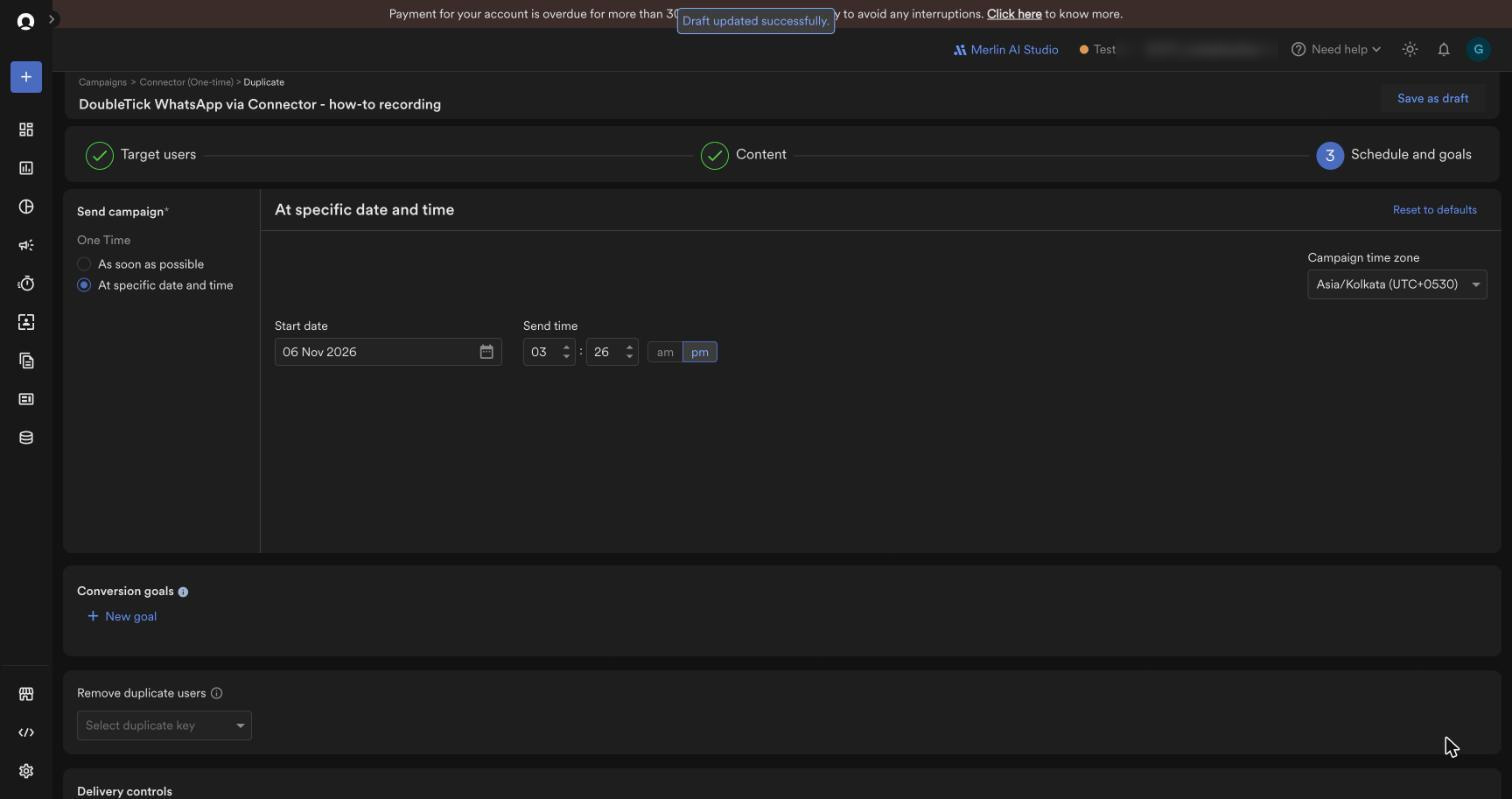
- Pick As soon as possible or a date and time.
- Click Publish.
Sending usually starts within 1–3 minutes.
Step 6 — Check the results
- Open the campaign and click Refresh.
- Analytics shows Attempted, Sent and Failed.
The counts can take a few minutes to catch up.
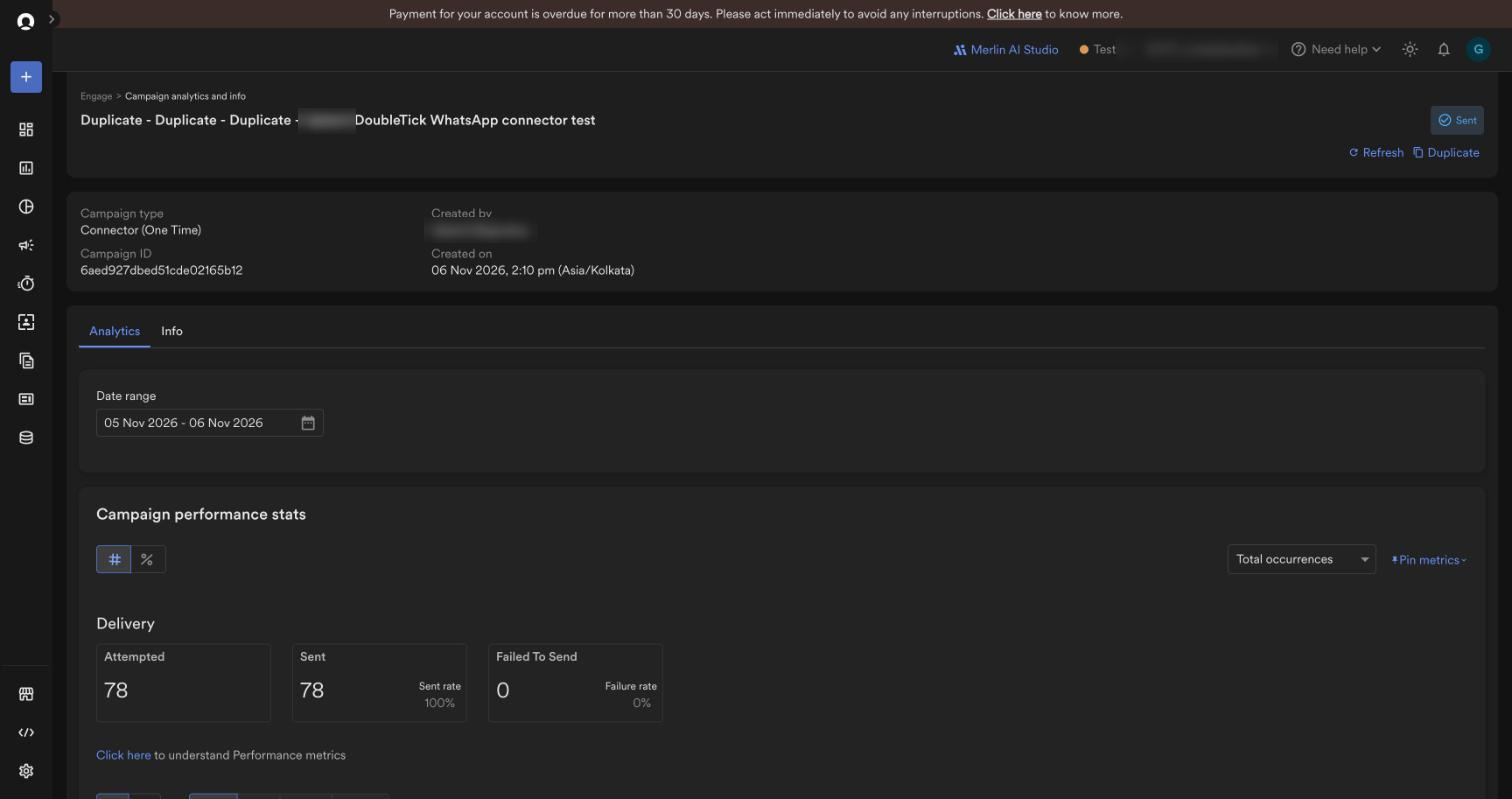
NOTE
"Sent" in MoEngage means DoubleTick accepted the message, not that WhatsApp delivered it. Delivered, read and failed statuses come to your DoubleTick status webhook (with your
customData), not back to MoEngage. Set one up in Webhooks.
Message Body Examples
The body tells DoubleTick who to send to and which template to use. Anything in {{UserAttribute['…']}} is filled in by MoEngage for each user. Only include the parts your template actually has.
| Field | What to put |
|---|---|
to | The user's number: {{UserAttribute['Mobile Number (Standard)']}} |
from (optional) | Which of your WhatsApp numbers sends it, with country code. Leave out to use your main number |
templateName, language | Exactly as approved, e.g. order_update and en |
placeholders | Values for {{1}}, {{2}} … in order |
customData (optional) | Your own tags, returned to you with the message status |
1. Simple template, no variables
{
  "to": "{{UserAttribute['Mobile Number (Standard)']}}",
  "content": { "templateName": "welcome_message", "language": "en" }
}
2. Personalised with the user's details
Template: "Hi {{1}}, your booking {{2}} is confirmed." Use default so a blank name still reads well.
{
  "to": "{{UserAttribute['Mobile Number (Standard)']}}",
  "content": {
    "templateName": "booking_confirmed",
    "language": "en",
    "templateData": {
      "body": { "placeholders": [
        "{{UserAttribute['First Name']|default('there')}}",
        "{{UserAttribute['booking_id']}}"
      ] }
    }
  }
}
3. With an image
{
  "to": "{{UserAttribute['Mobile Number (Standard)']}}",
  "content": {
    "templateName": "winter_offer",
    "language": "en",
    "templateData": {
      "header": { "type": "IMAGE", "mediaUrl": "https://cdn.example.com/winter.jpg" },
      "body": { "placeholders": ["{{UserAttribute['First Name']|default('there')}}"] }
    }
  }
}
For a video use "type": "VIDEO". The link must be public so WhatsApp can download it.
4. With a PDF (e.g. an invoice or itinerary)
{
  "to": "{{UserAttribute['Mobile Number (Standard)']}}",
  "content": {
    "templateName": "itinerary_ready",
    "language": "en",
    "templateData": {
      "header": {
        "type": "DOCUMENT",
        "mediaUrl": "https://cdn.example.com/trips/{{UserAttribute['booking_id']}}.pdf",
        "filename": "Itinerary.pdf"
      }
    }
  }
}
5. With a personalised link button
The button URL in the template ends with {{1}}, e.g. https://example.com/pay/{{1}}.
{
  "to": "{{UserAttribute['Mobile Number (Standard)']}}",
  "content": {
    "templateName": "pay_now",
    "language": "en",
    "templateData": {
      "body": { "placeholders": ["{{UserAttribute['due_amount']}}"] },
      "buttons": [ { "type": "URL", "parameter": "{{UserAttribute['booking_id']}}" } ]
    }
  }
}
6. With a coupon code to copy
{
  "to": "{{UserAttribute['Mobile Number (Standard)']}}",
  "content": {
    "templateName": "coupon_offer",
    "language": "en",
    "templateData": {
      "body": { "placeholders": ["WINTER25"] },
      "buttons": [ { "type": "COPY_CODE", "parameter": "WINTER25" } ]
    }
  }
}
7. Carousel (swipeable cards)
One entry per card, numbered from 0 in the template's order.
{
  "to": "{{UserAttribute['Mobile Number (Standard)']}}",
  "content": {
    "templateName": "top_destinations",
    "language": "en",
    "templateData": {
      "cards": [
        { "cardIndex": 0, "components": {
            "header": { "type": "IMAGE", "mediaUrl": "https://cdn.example.com/goa.jpg" },
            "body": { "placeholders": ["Goa"] } } },
        { "cardIndex": 1, "components": {
            "header": { "type": "IMAGE", "mediaUrl": "https://cdn.example.com/kerala.jpg" },
            "body": { "placeholders": ["Kerala"] } } }
      ]
    }
  }
}
8. From a specific number, with your own tracking tags
{
  "from": "+919800000000",
  "to": "{{UserAttribute['Mobile Number (Standard)']}}",
  "content": { "templateName": "welcome_message", "language": "en" },
  "customData": { "moe_user_id": "{{UserAttribute['ID']}}", "campaign": "diwali_2026" }
}
Good to Know
- "Sent" in MoEngage means DoubleTick accepted the message, not that WhatsApp delivered it.
- Delivered, read and failed statuses come to your DoubleTick status webhook (with your
customData), not back to MoEngage. - Template name and language must match exactly.
enanden_USare different templates, and the template must be approved on the number you send from. - Variables are filled in order (
{{1}},{{2}}…), and you need one value per variable. - Use Raw body type. MoEngage's JSON option can't hold these bodies.
- Blank user details: if a user attribute is empty, add
|default('…')so the message still makes sense and isn't rejected by WhatsApp.
If MoEngage Shows "Failed"
| Reason shown | What to do |
|---|---|
| Template with given name and language not found | Check the template name, language, and that it's approved on the sending number |
| Template body placeholders are less / more… | Send exactly one value per {{n}} in the template |
| No Connected WhatsApp Business Account… | Fix from, or leave it out to use your main number |
| 403 Forbidden | Use an API key from a user with access to all conversations |
Integration Flow Overview
Once the setup is complete:
- MoEngage picks the users in your segment and fills in each user's details.
- DoubleTick checks the request and queues it in under a second.
- The template is delivered from your WhatsApp number.
- Delivery, read and failed statuses are sent to your DoubleTick status webhook.
Updated about 5 hours ago
What’s Next
Get delivery, read and failed statuses for your MoEngage messages, and see the full template message format.