Embed WhatsApp Conversations Inside Your Product (COPY)
Get a ready-to-use iframe URL that opens a specific WhatsApp conversation for a given contact's phone number directly inside your application.
DoubleTick allows you to embed a live WhatsApp conversation directly inside your application using a secure iframe URL.
This is useful when you want your users, agents, or support teams to view and manage WhatsApp chats without leaving your platform.
Common use cases include:
- CRM platforms showing customer conversations beside lead details
- Support dashboards with embedded WhatsApp chats
- Internal tools for sales or operations teams
- Custom admin panels with integrated messaging
- SaaS products offering WhatsApp communication inside their UI
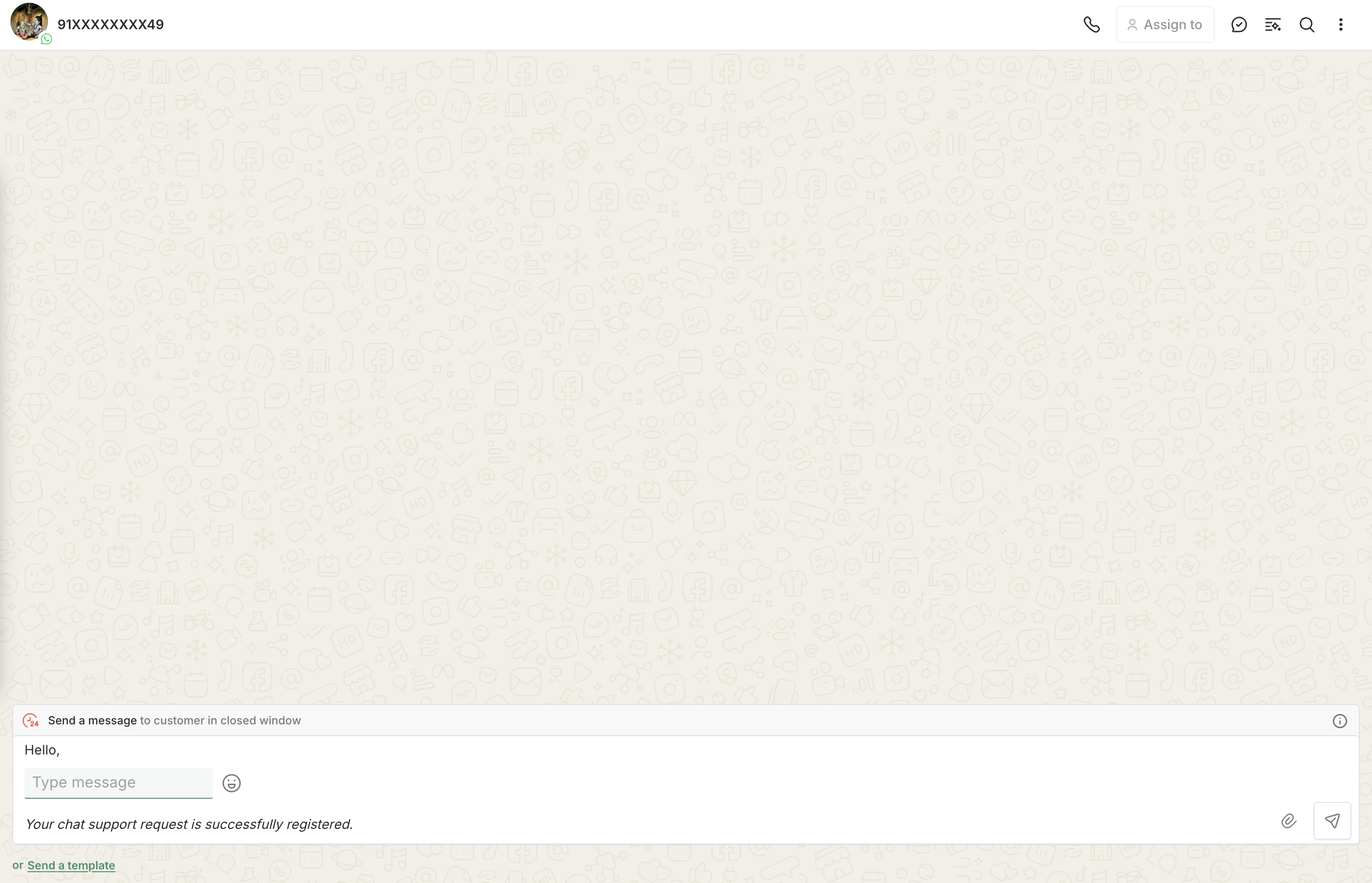
The embedded interface is fully hosted and managed by DoubleTick, allowing users to interact with WhatsApp conversations directly from your platform.
Create WhatsApp Conversation Embed URL
Use the following endpoint to get an embed URL for a WhatsApp conversation:
POST https://public.doubletick.io/embed/url
Request Headers
{
  "Authorization": "YOUR_API_KEY",
  "Content-Type": "application/json"
}
NOTE
If you do not have your DoubleTick API Key, you can obtain it by following this guide:
https://docs.doubletick.io/docs/quickstart-guide#step-2-generate-your-api-key
Request Body Parameters
{
  "phone": "919876543210",
  "integrationId": "intg_xxxxxxxxxx",
  "wabaNumber": "919000000000"
}
Parameters
phone(string, required):- WhatsApp phone number of the contact in international format.
- No
+or spaces.
integrationId(string, optional):- DoubleTick integration ID (e.g.,
intg_xxxxxxxxxx). - If not provided, the primary connected WhatsApp integration is used automatically.
- DoubleTick integration ID (e.g.,
wabaNumber(string, optional):- WhatsApp Business Account number in international format.
- Ignored if
integrationIdis also provided.
NOTE
This API generates a secure embeddable URL for a WhatsApp conversation.
The generated URL can be used inside an iframe to display:
- A specific customer conversation
- The DoubleTick messaging interface
The embed automatically opens the conversation associated with the provided phone number.
Responses
Success Response (200)
{
  "url": "https://webextend.doubletick.io/embed/conversations/intg_xxxxxxxxxx/customer_xxxxxxxxxx?showChatListPanel=false&showCustomerDetails=false&showSidebar=false"
}
Bad Request (400)
{
  "message": "error_message",
  "error": "Bad Request",
  "statusCode": 400
}
Unauthorized (401)
{
  "message": "Invalid public api key",
  "error": "Unauthorized",
  "statusCode": 401
}
Not Found (404)
{
  "message": "No connected WhatsApp integration found",
  "error": "Not Found",
  "statusCode": 404
}
Using the URL
Once you receive the url in the response, use it directly as the src of an iframe in your application:
<iframe
  src="https://webextend.doubletick.io/embed/conversations/intg_xxxxxxxxxx/customer_xxxxxxxxxx?showChatListPanel=false&showCustomerDetails=false&showSidebar=false"
  width="400"
  height="600"
  frameborder="0"
/>
Customizing the Embed URL
The embed URL supports a set of query parameters that let you control which panels and UI elements are visible. Append them directly to the URL returned by the API.
1. Layout & Navigation
Controls the major structural panels of the embed.
| Parameter | Default | How to change | Description |
|---|---|---|---|
showSidebar | Visible | =false to hide | The left-side navigation sidebar options |
showChatListPanel | Visible | =false to hide | The chat list panel. When hidden, the embed opens directly into the active chat view without the list. |
showChatFilters | Visible | =false to hide | The filters panel on the left of the chat list. |
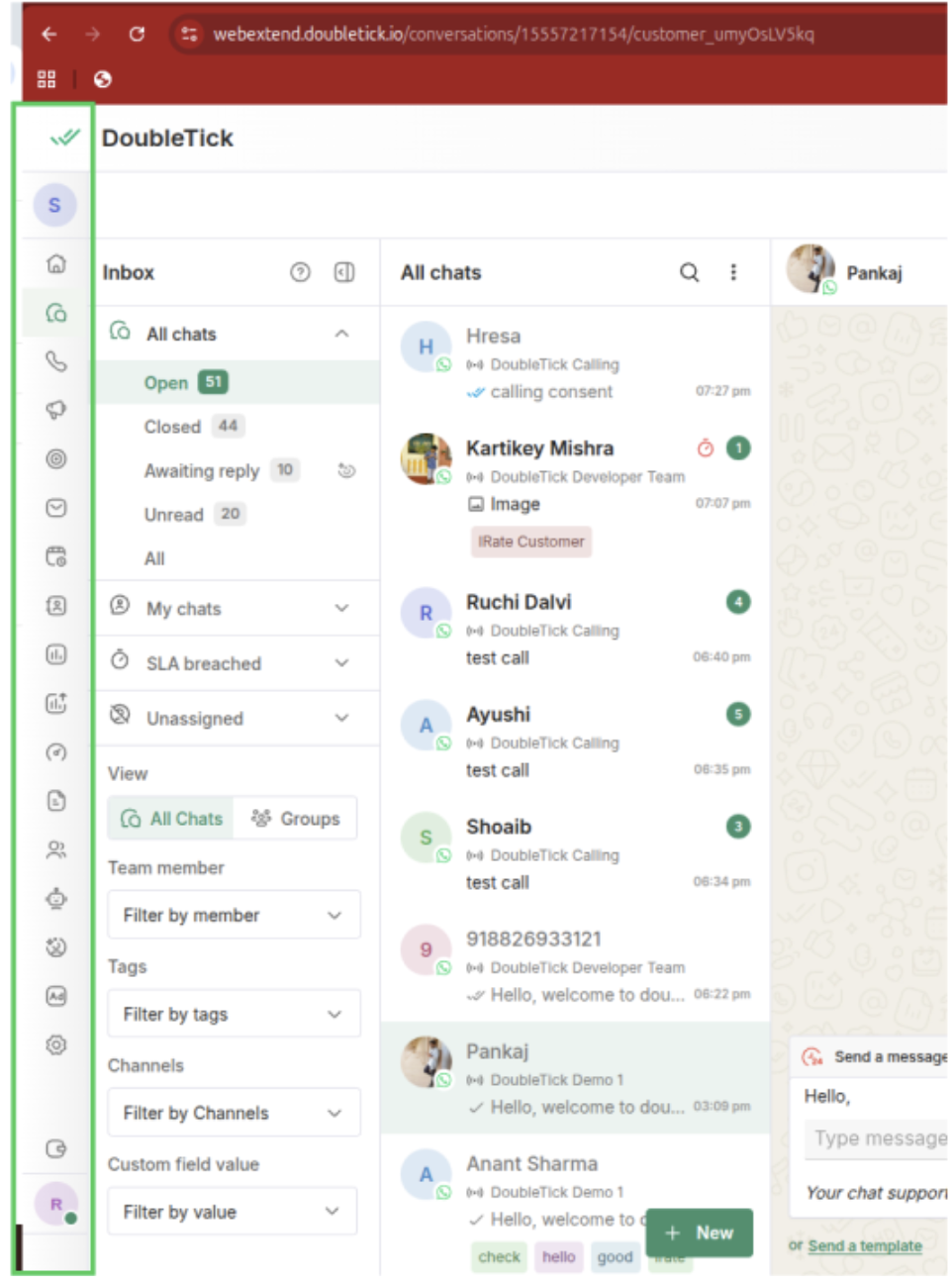
set showSidebar:false to remove options from highlighted area
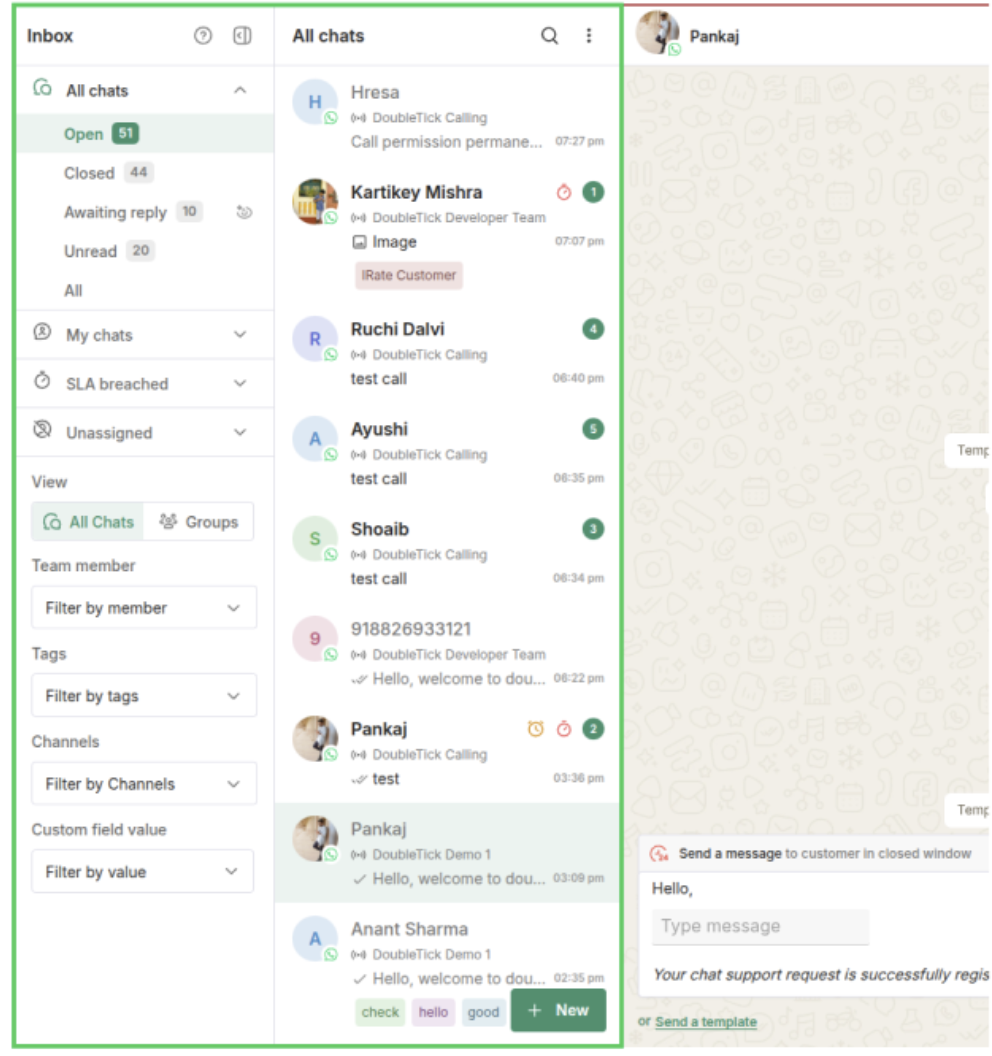
set showChatListPanel:false to remove highlighted area
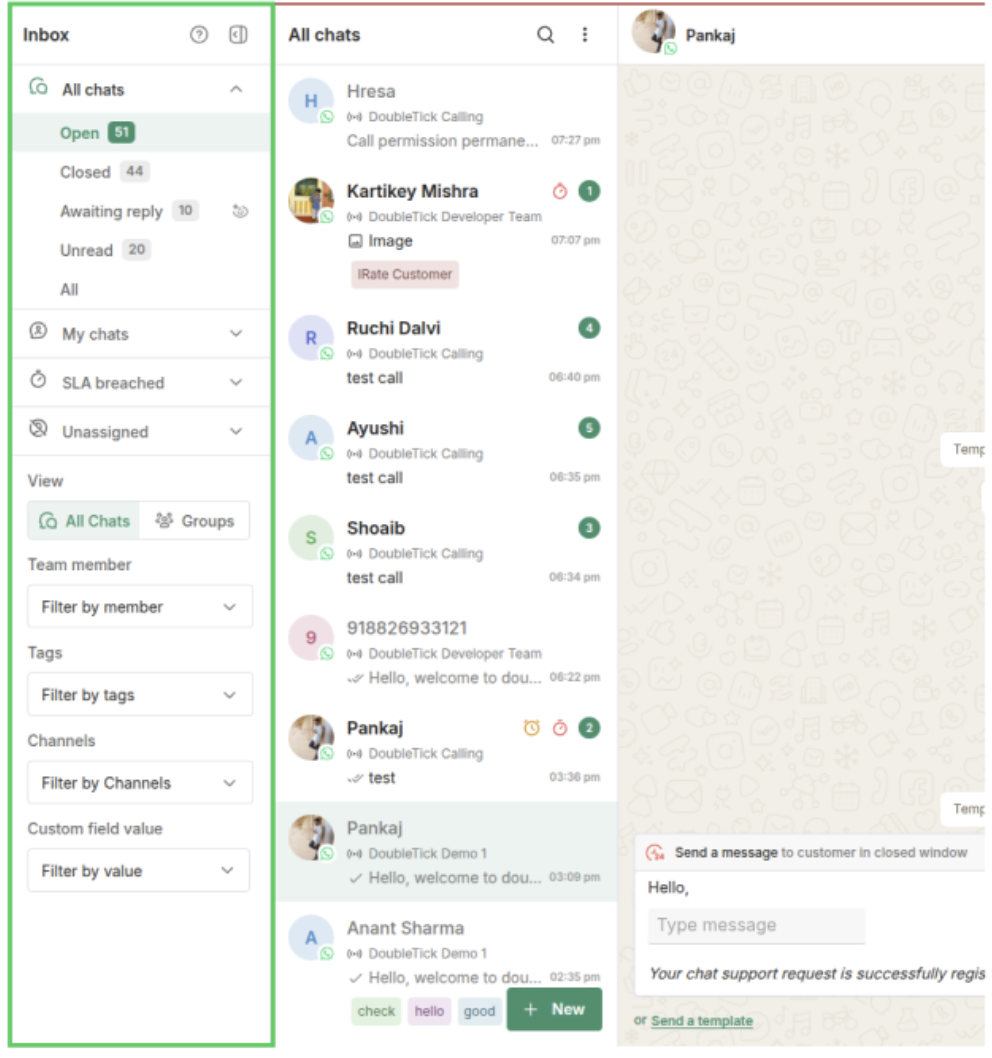
set showChatFilters:false to remove highlighted area
2. Chat Header Actions
Controls the action buttons that appear in the header bar of an open conversation.
| Parameter | Default | How to change | Description |
|---|---|---|---|
showChatAssignee | Visible | =false to hide | The agent assignee dropdown in the chat header |
showChatMarkDone | Visible | =false to hide | The “Mark as Done” button. Does not appear for group chats regardless of this setting. |
showChatMenu | Visible | =false to hide | The three-dot (⋮) action menu. Applies to individual chats only. |
showChatCart | Visible | =false to hide | The cart / order button in the chat header. |
showAddToBroadcastChannel | Visible | =false to hide | The “Add to Broadcast Channel” option in the chat action menu. |
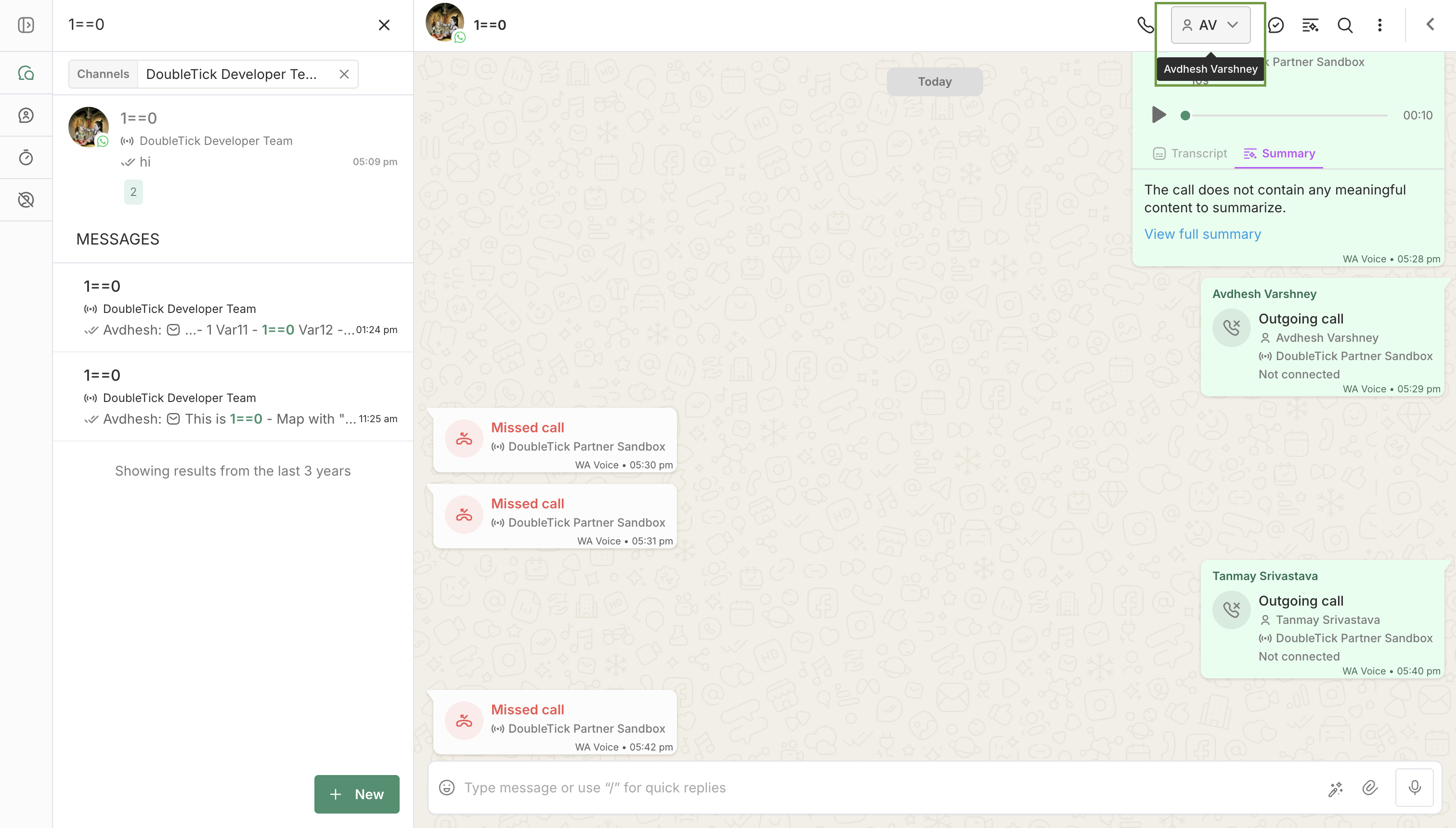
set showChatAssignee:false to remove highlighted area
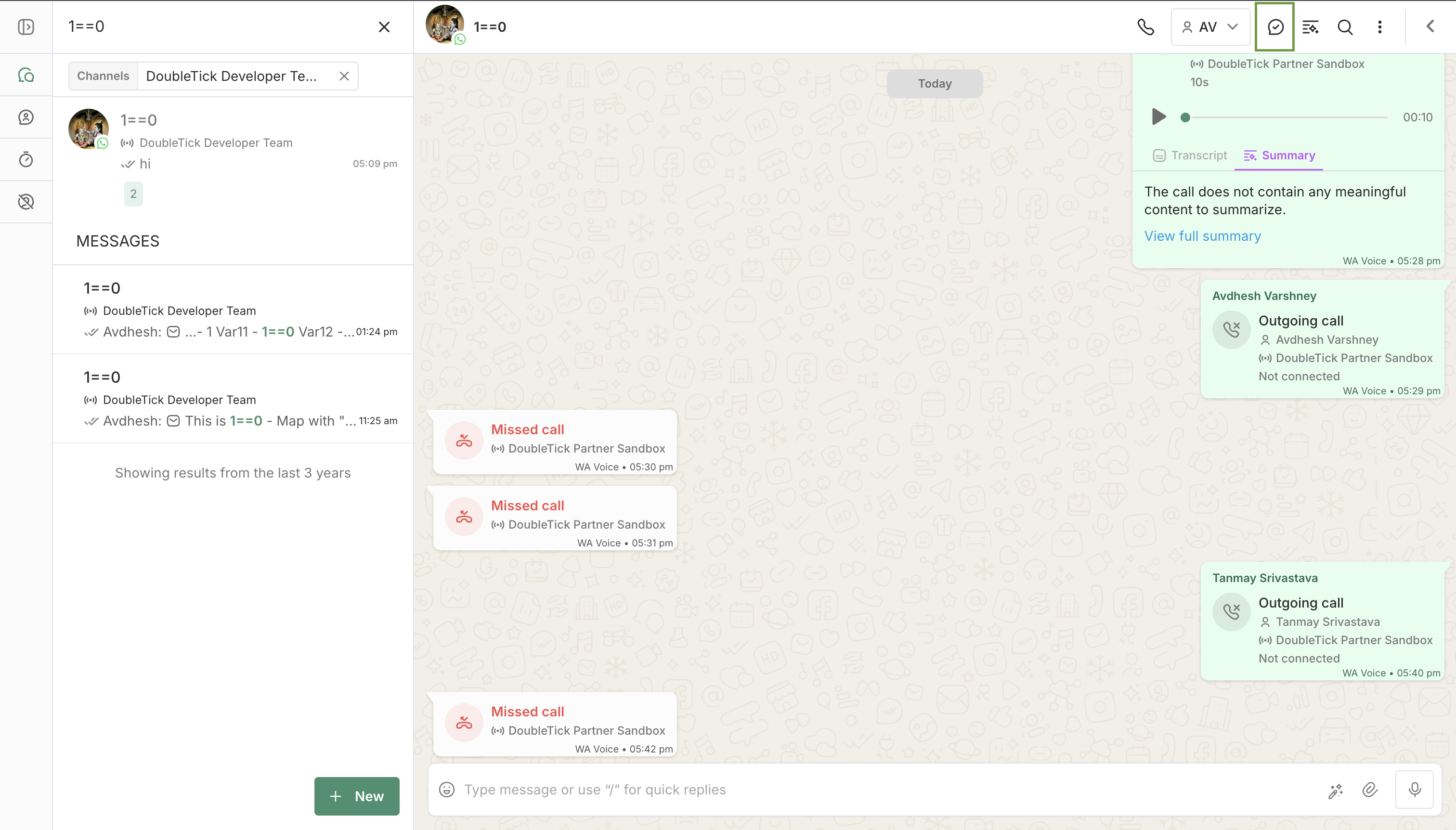
set showChatMarkDone:false to remove highlighted area
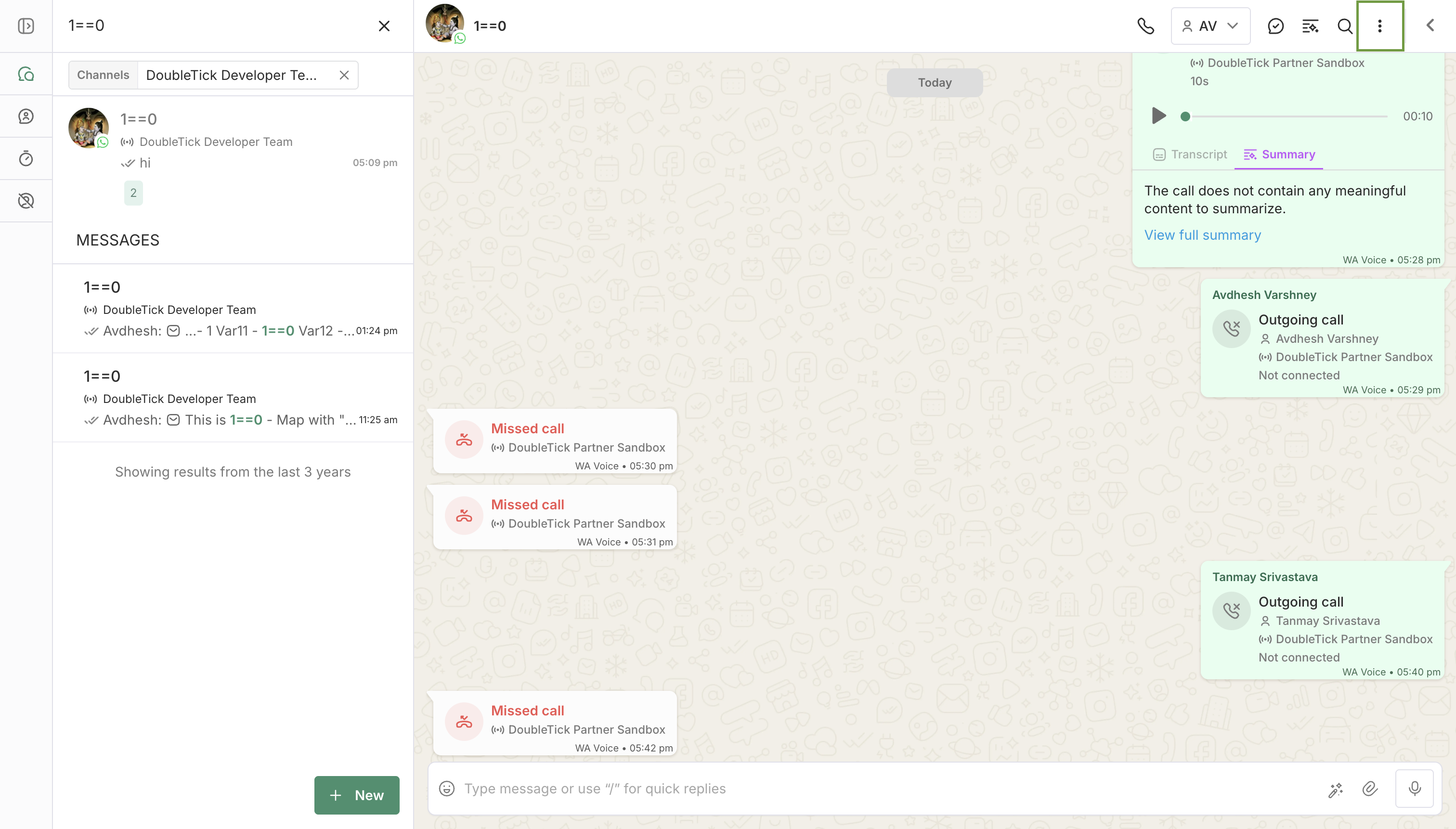
set showChatMenu:false to remove highlighted area
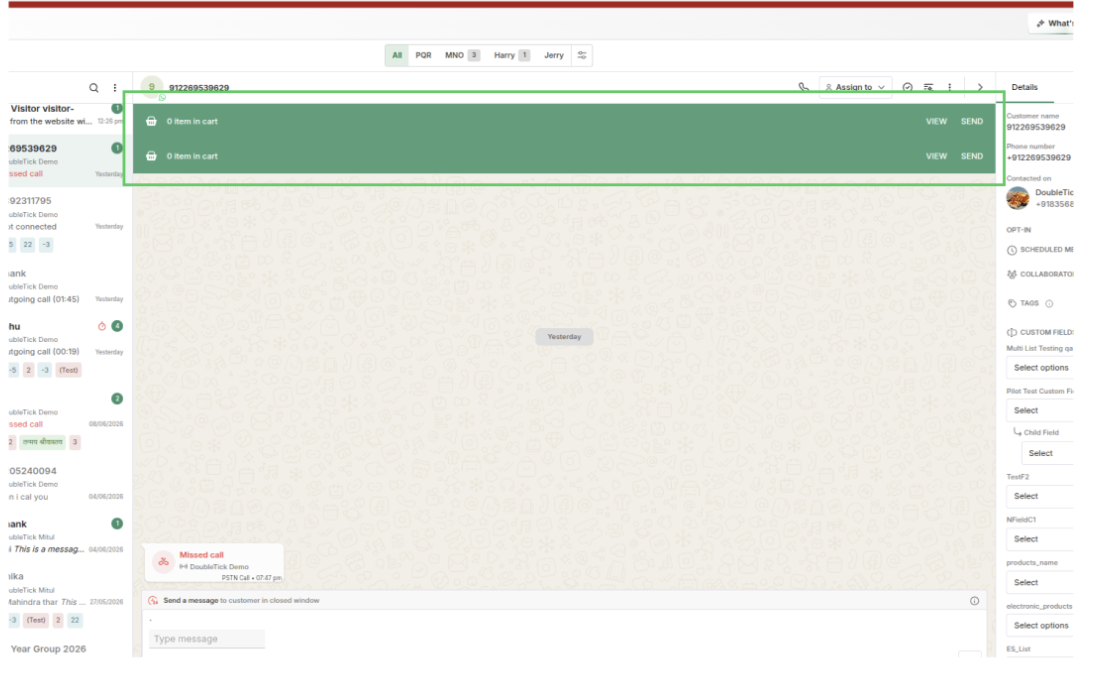
set showChatCart:false to remove highlighted area
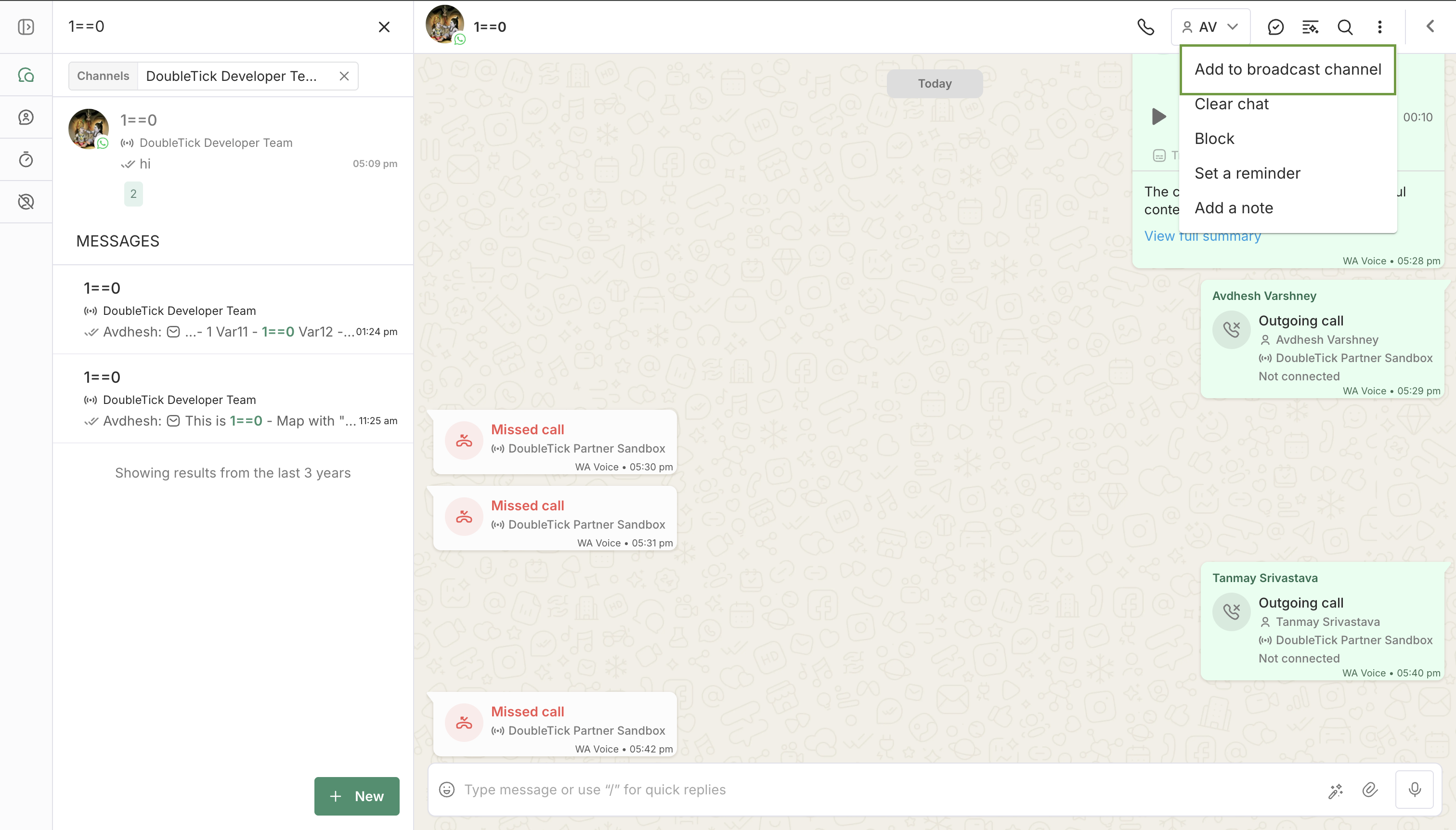
set showAddToBroadcastChannel:false to remove highlighted area
3. Chat List
Controls elements within the chat list panel.
| Parameter | Default | How to change | Description |
|---|---|---|---|
showChatSearch | Visible | =false to hide | The search bar above the chat list. |
showChatSelection | Visible | =false to hide | Multi-chat selection (checkboxes on each row). When hidden, users cannot select multiple chats for bulk actions. |
showBulkMarkAsDone | Visible | =false to hide | The "Mark as Done" button shown in the bulk-selection toolbar when multiple chats are selected. |
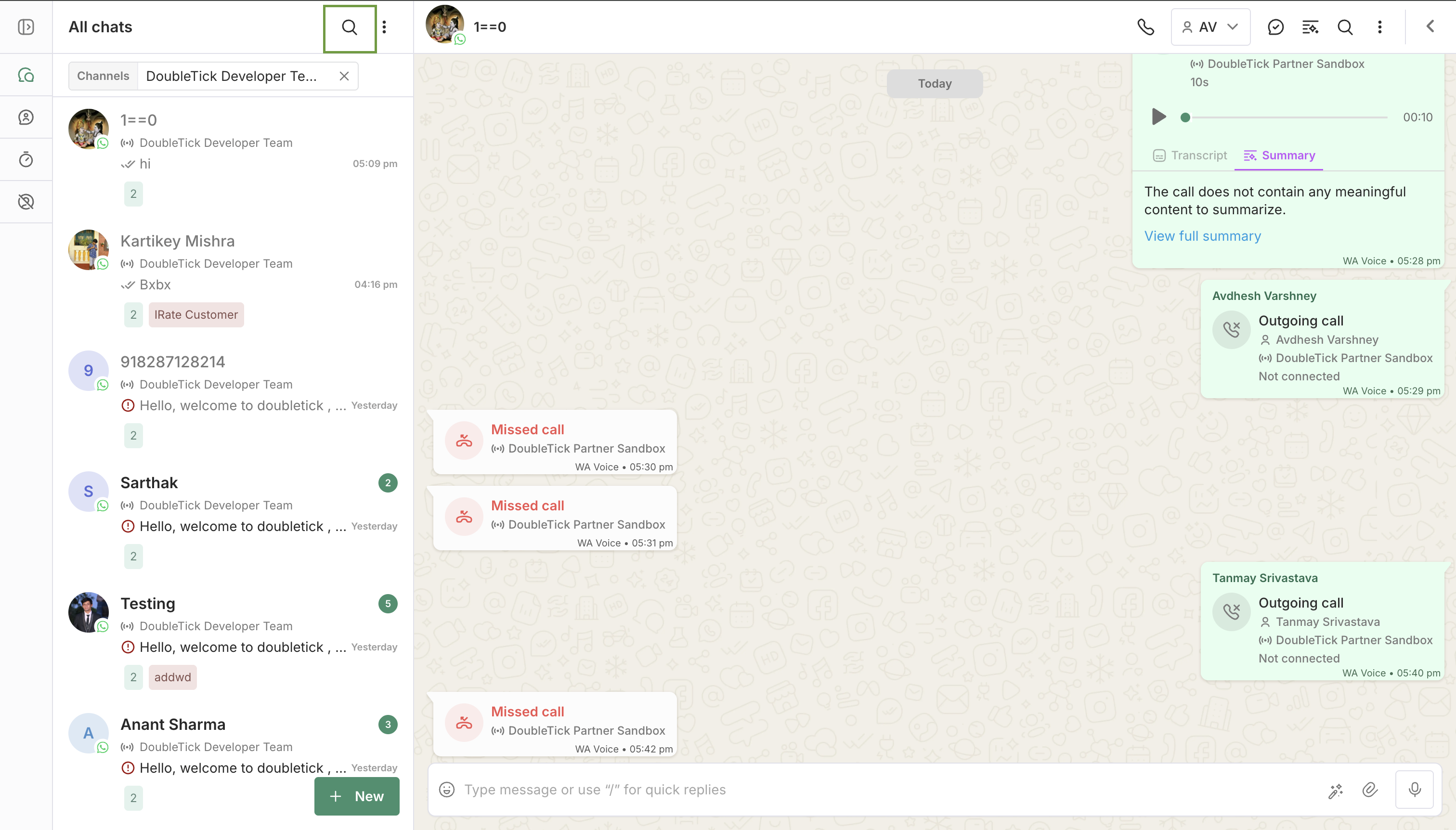
set showChatSearch:false to remove highlighted area
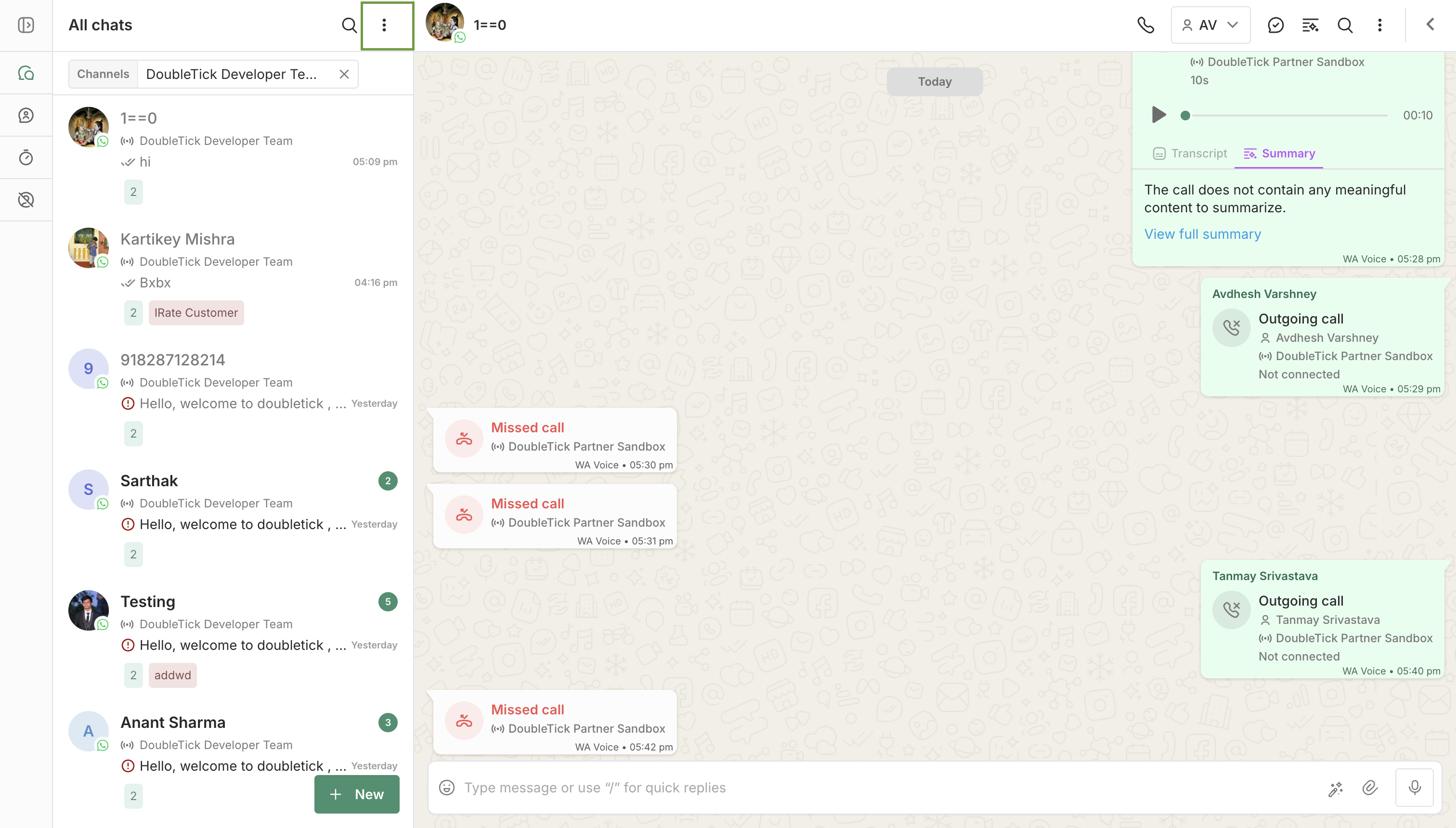
set showChatSelection:false to remove highlighted area
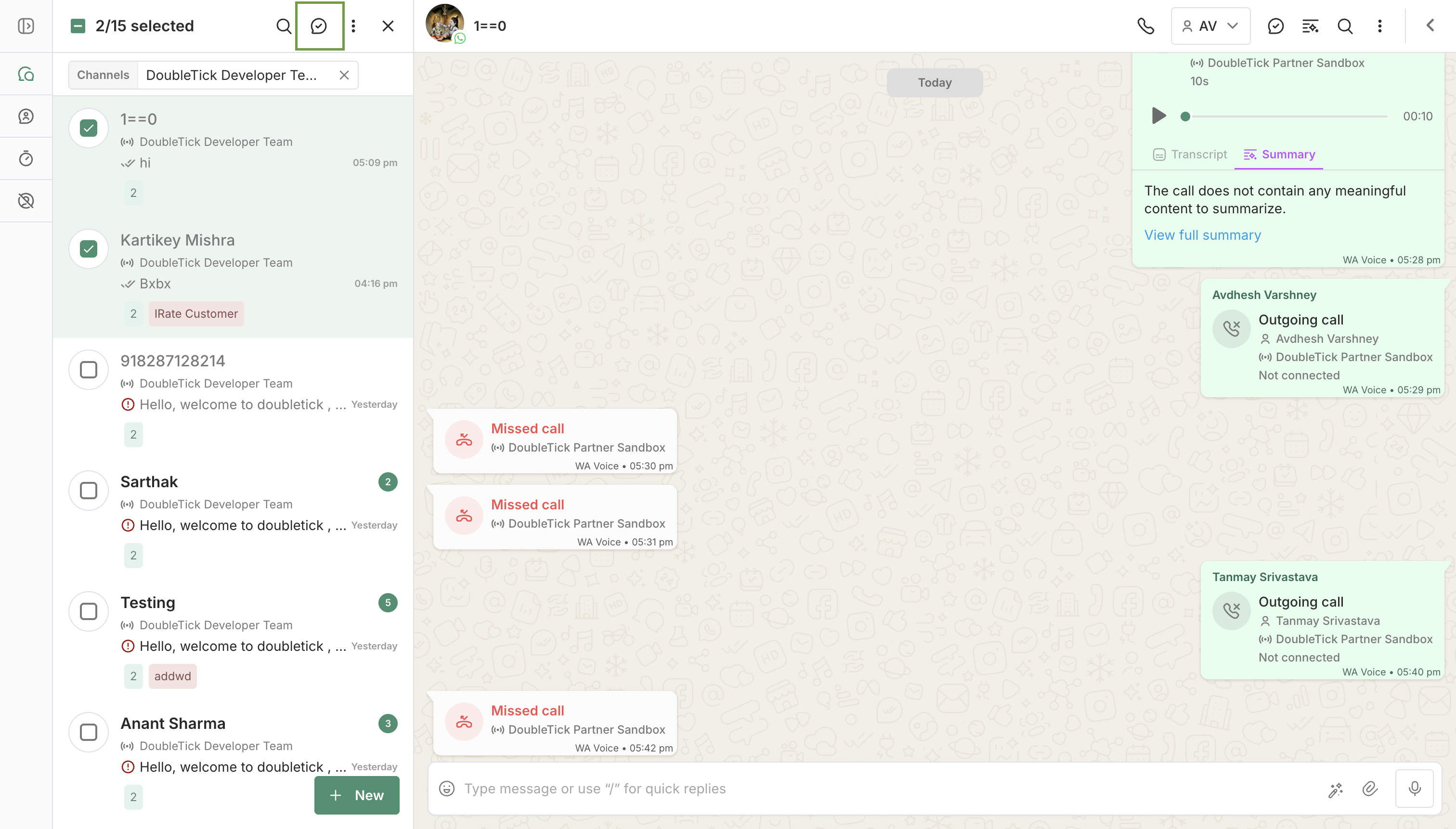
set showBulkMarkAsDone:false to remove highlighted area
4. Customer Details Panel
Controls sections within the right-side customer details panel.
| Parameter | Default | How to change | Description |
|---|---|---|---|
showCustomerDetails | Visible | =false to hide | The entire customer details panel on the right side. |
showNotes | Visible | =false to hide | The Notes section inside the customer details panel. When hidden, the custom fields section expands to full width. |
showCallHistory | Visible | =false to hide | The Call History section. Only relevant if the calling feature is enabled on your account. |
showParticipants | Visible | =false to hide | The details/participants panel in broadcast channel views. |
showAddCustomField | Visible | =false to hide | The “Add Custom Field” button in the custom fields section. Hides the button but existing custom fields remain visible. |
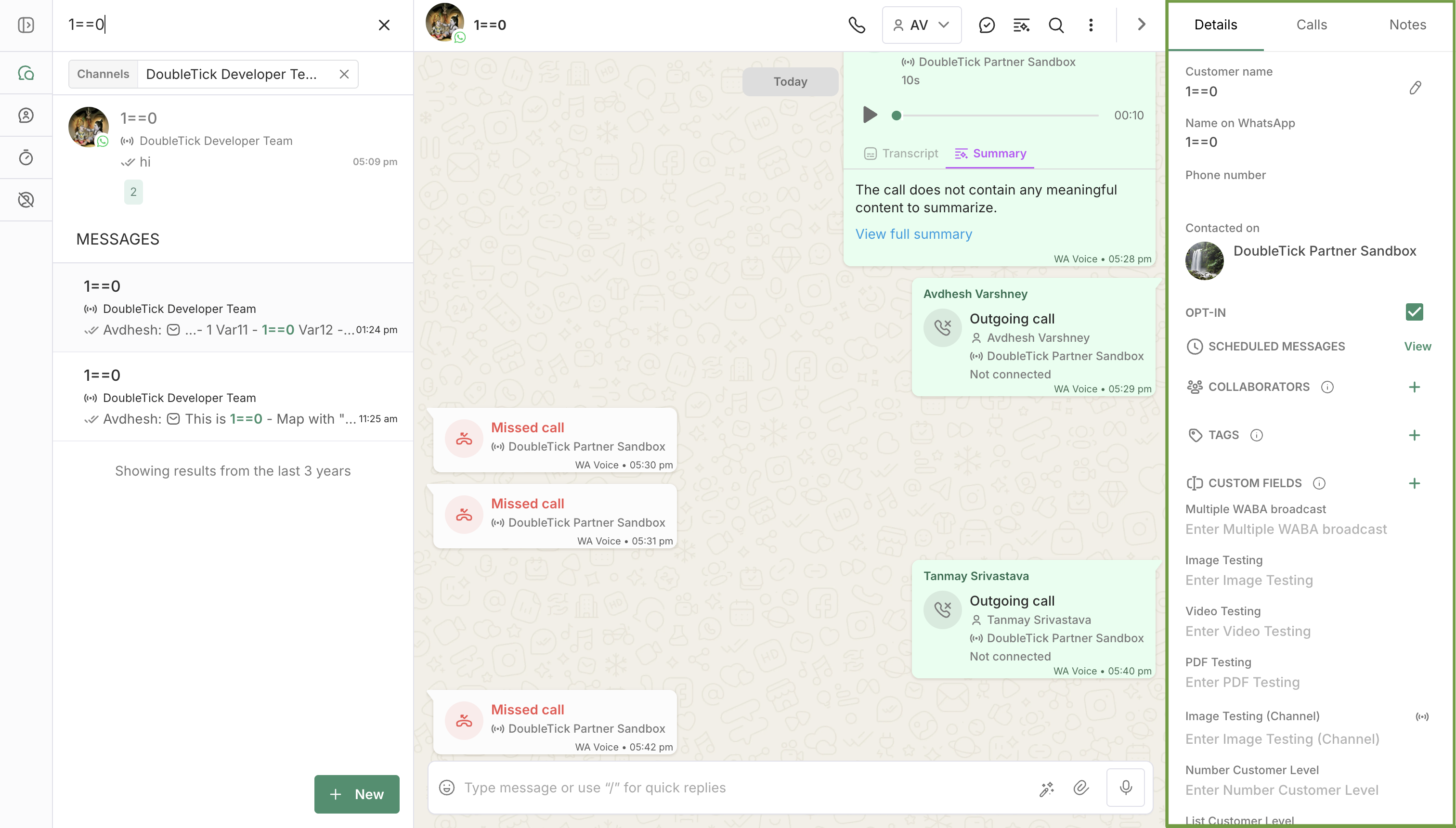
set showCustomerDetails:false to remove highlighted area
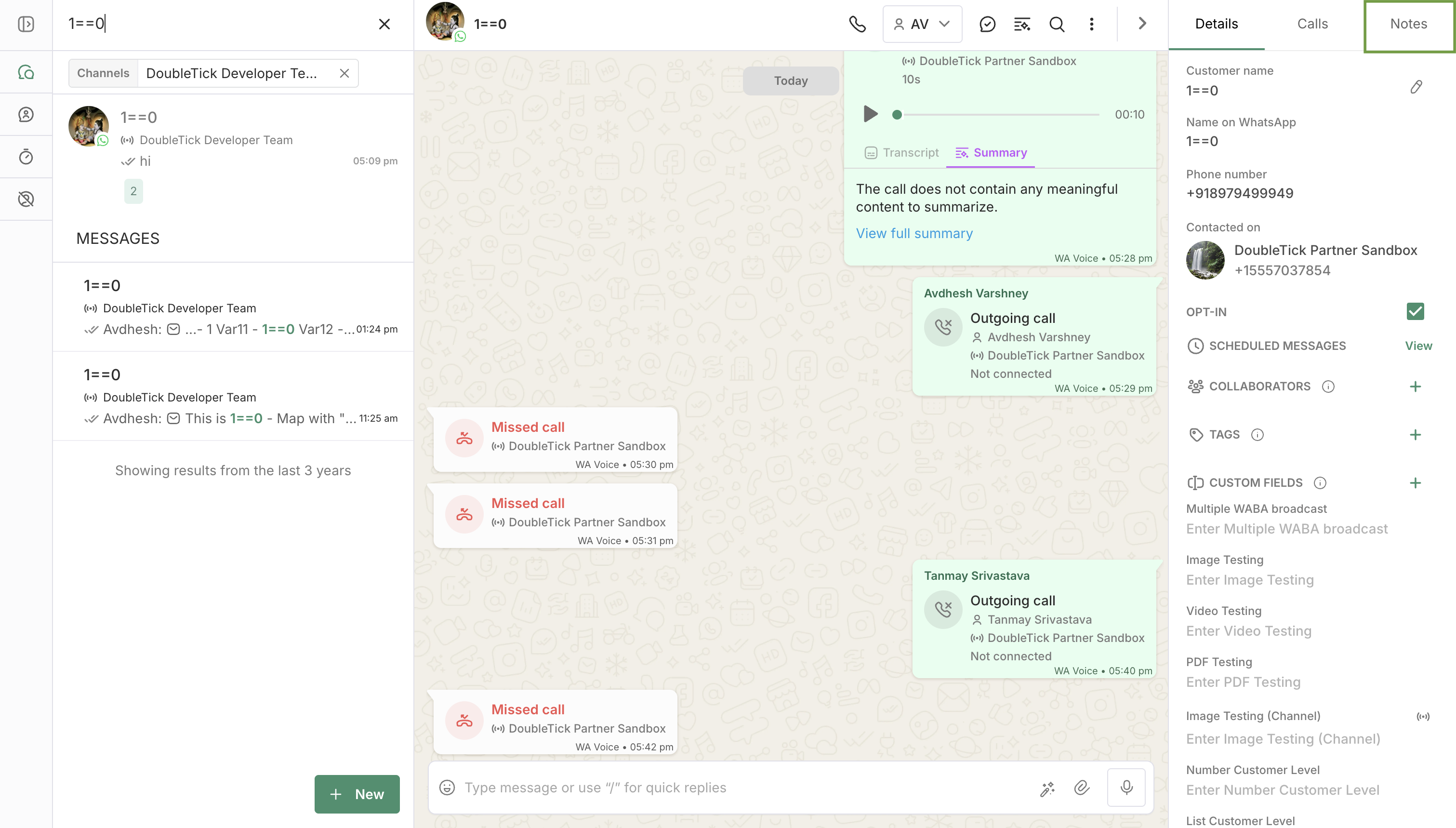
set showNotes: false to remove highlighted area
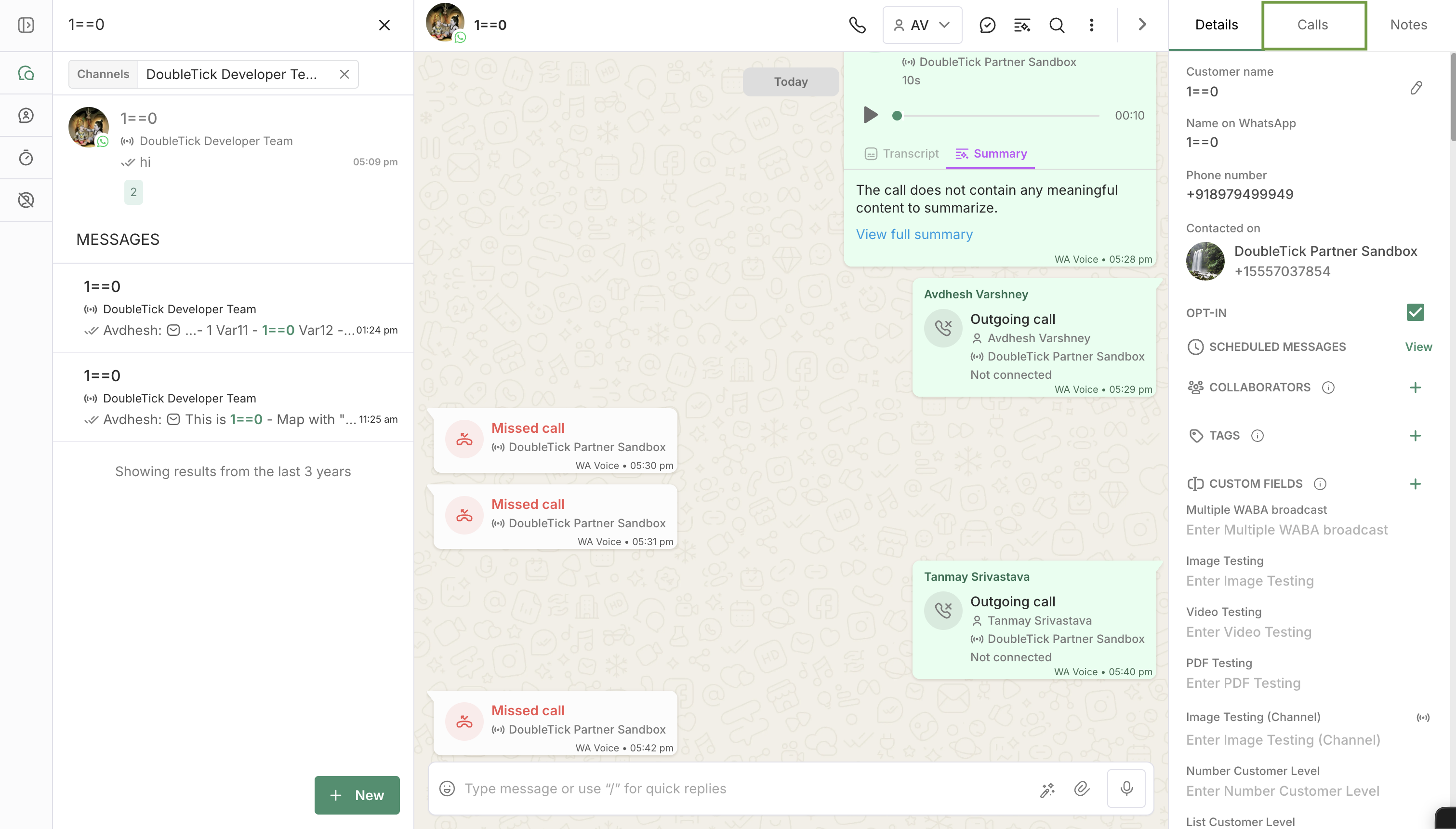
set showCallHistory: false to remove highlighted area
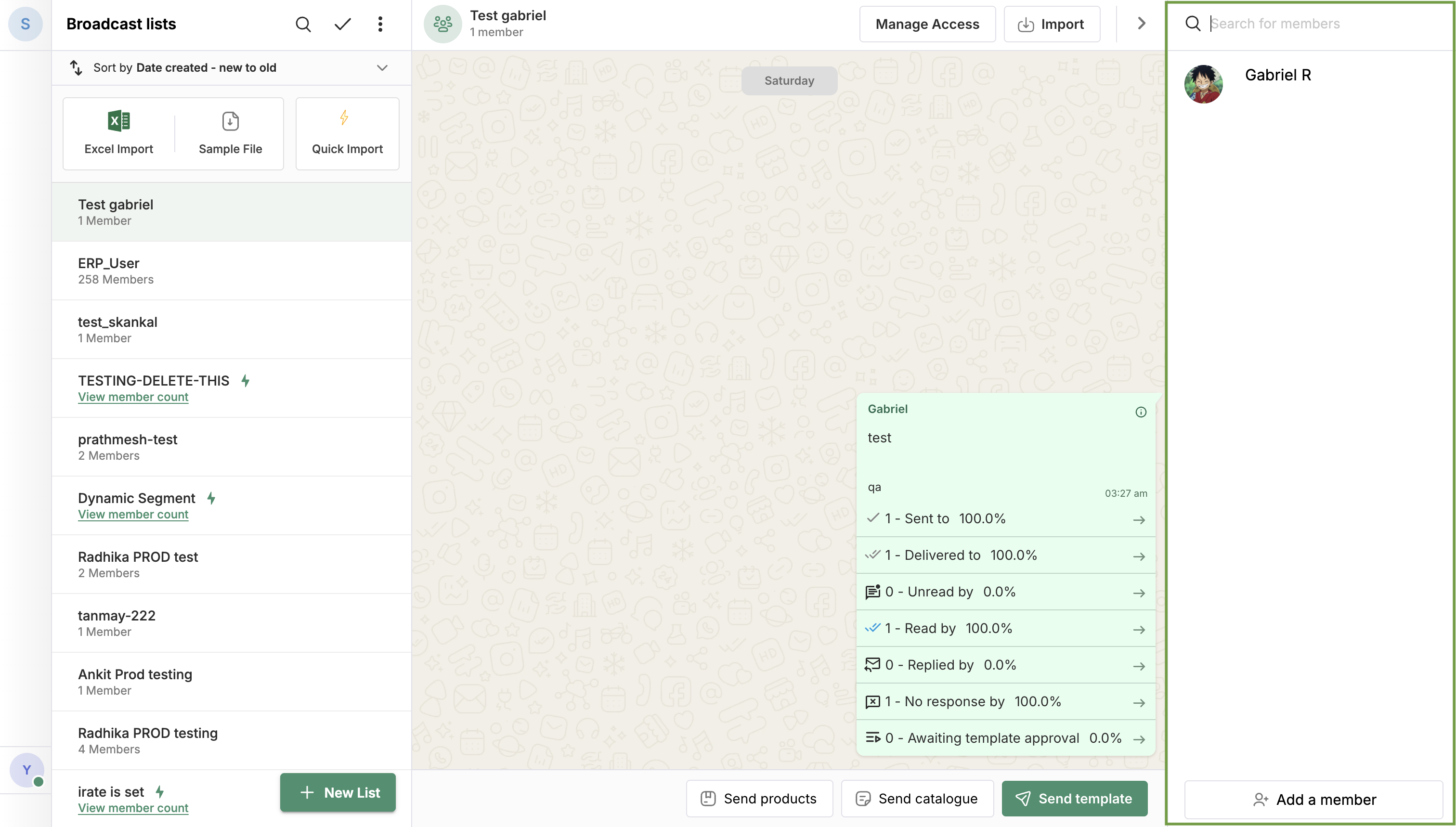
set showParticipants: false to remove highlighted area
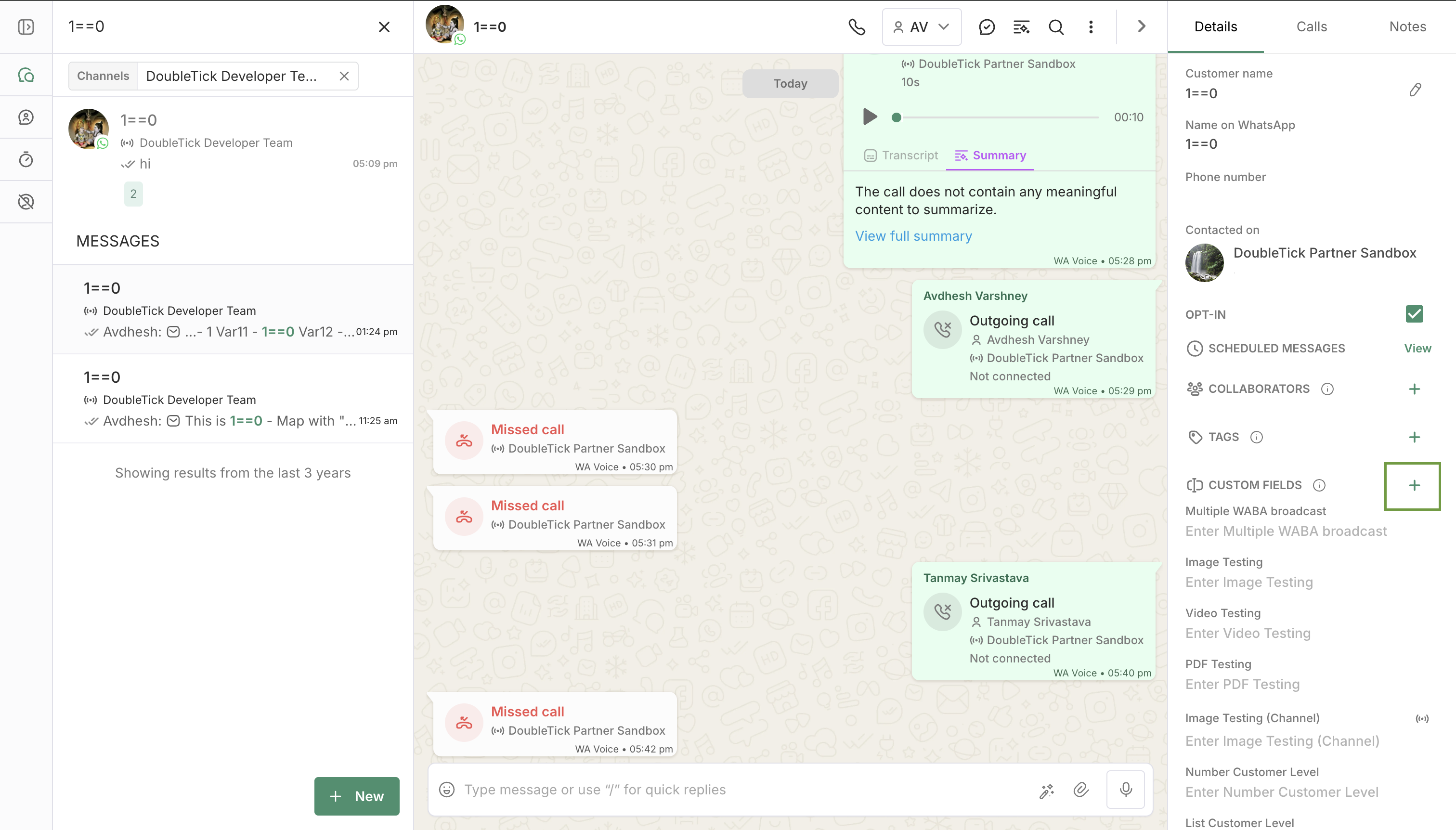
set showAddCustomField: false to remove highlighted area
5. Account/Session
| Parameter | Default | How to change | Description |
|---|---|---|---|
showLogoutInMenuHeader | Hidden | =true to show | Adds a Logout button to the menu header. Enable this when your integration requires the end-user to be able to explicitly sign out from within the embed. |
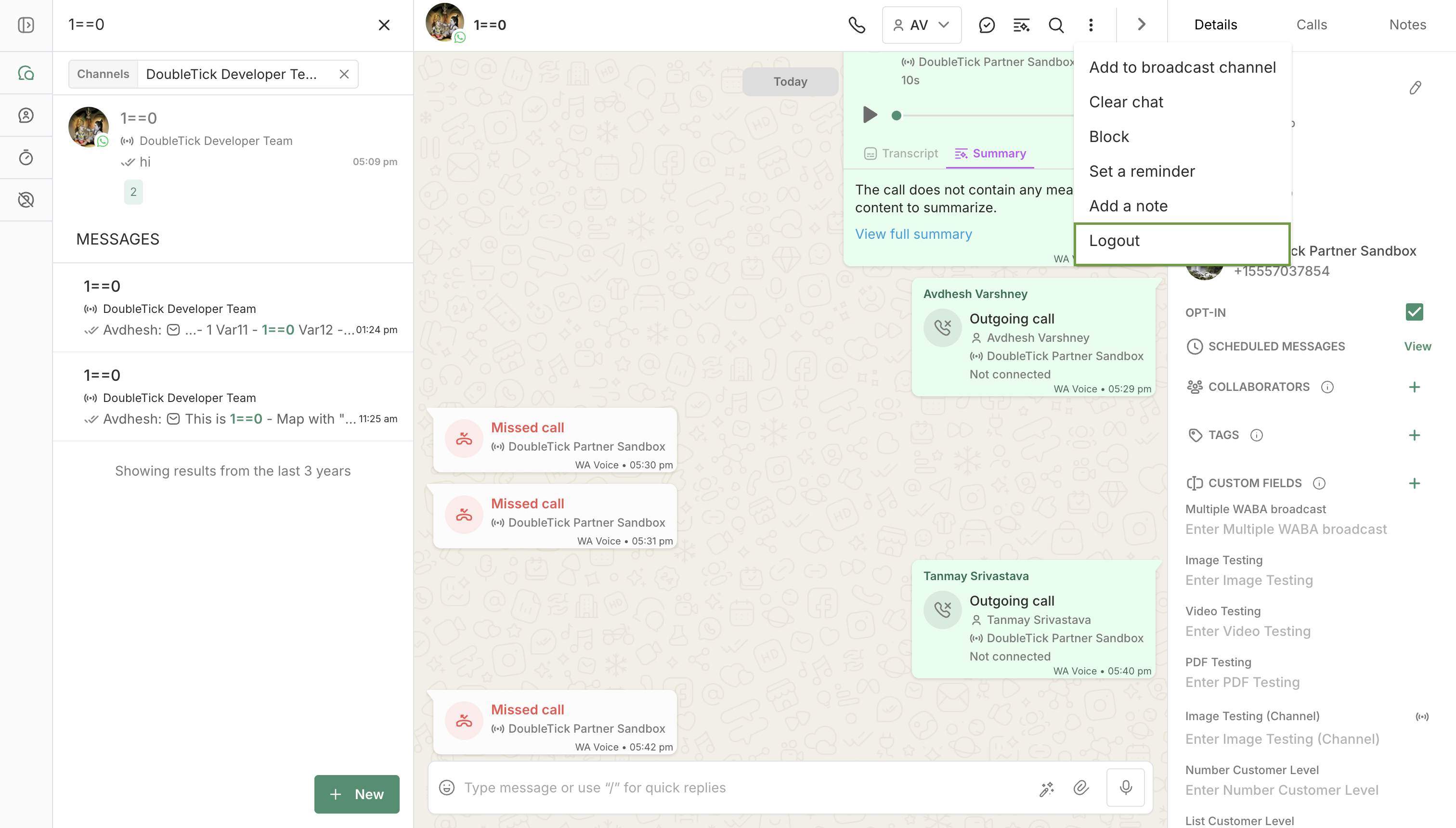
set showLogoutInMenuHeader: false to remove highlighted area
6. Utility Parameters
These parameters are not visibility toggles — they control embed behaviour directly.
| Parameter | Value | Description |
|---|---|---|
clearLocalStorage | true | Clears the cached embed visibility settings from the browser's localStorage. Append this once when you change your parameter configuration, and then remove it from subsequent loads. |
Default Behaviour Summary
| Parameter | Parameters |
|---|---|
| Visible by default pass =false to hide | showCustomerDetails, showChatAssignee, showChatListPanel, showChatMarkDone, showChatTagList, showChatAddTag, showChatCart, showChatMenu, showAddToBroadcastChannel, showChatFilters, showChatSearch, showChatSelection, showAddCustomField, showNotes, showParticipants,showSidebar, showCallHistory, showBulkMarkAsDone |
| Hidden by default pass =true to enable | showLogoutInMenuHeader |
Flushing the Cache
If you update your URL parameters and the changes don't take effect, append clearLocalStorage=true to the URL once to reset the cached configuration, then remove it from subsequent loads.
See Utility Parameters for details.
Best Practices
- Always pass the phone number with the country code and no special characters (e.g.,
919876543210not+91 98765 43210). - Use
integrationIdorwabaNumberwhen you want to open the conversation with particular WhatsApp business number. - Leave
showChatListPanel,showCustomerDetails, andshowSidebarasfalse(default) for a focused single-conversation embed with no distractions. - Set all three to
trueif you want to give users access to the full DoubleTick interface inside the embed. - Append
clearLocalStorage=trueonce after changing parameters — embed settings are cached in the browser. Add this param to flush the cache, then remove it from subsequent loads to avoid repeated clears. showChatMarkDonenever appears on group chats — this is expected behaviour regardless of the parameter value. Plan your UI accordingly if you support both individual and group chat contexts.showCallHistoryis only relevant if calling is enabled — if the section doesn't appear, confirm with your DoubleTick account manager whether the calling feature is active on your account.- Use
showLogoutInMenuHeader=trueonly when needed — enable this only if your integration requires users to explicitly sign out from within the embed; it's hidden by default for a reason.
Updated 4 months ago